Getting Started
Welcome to the At9 help centre. Here you'll find step-by-step guides covering everything in the app — from setting up your account to managing bookings, availability, and your team.
Select a topic from the menu on the left to open its guides. You can then work through them in order using the Previous and Next links at the bottom of each page, or jump to any guide directly from the menu.
If you can't find what you're looking for, get in touch at contact@at9.app and we'll help you out.
Register
Open At9 and tap Register on the welcome screen.
- Enter your name, email address, and choose a password (at least 8 characters).
- Tap Register — At9 creates your account and sends you a verification email.
- Open the email and tap the verification link to confirm your address.
- Return to the app and sign in from the Login screen.
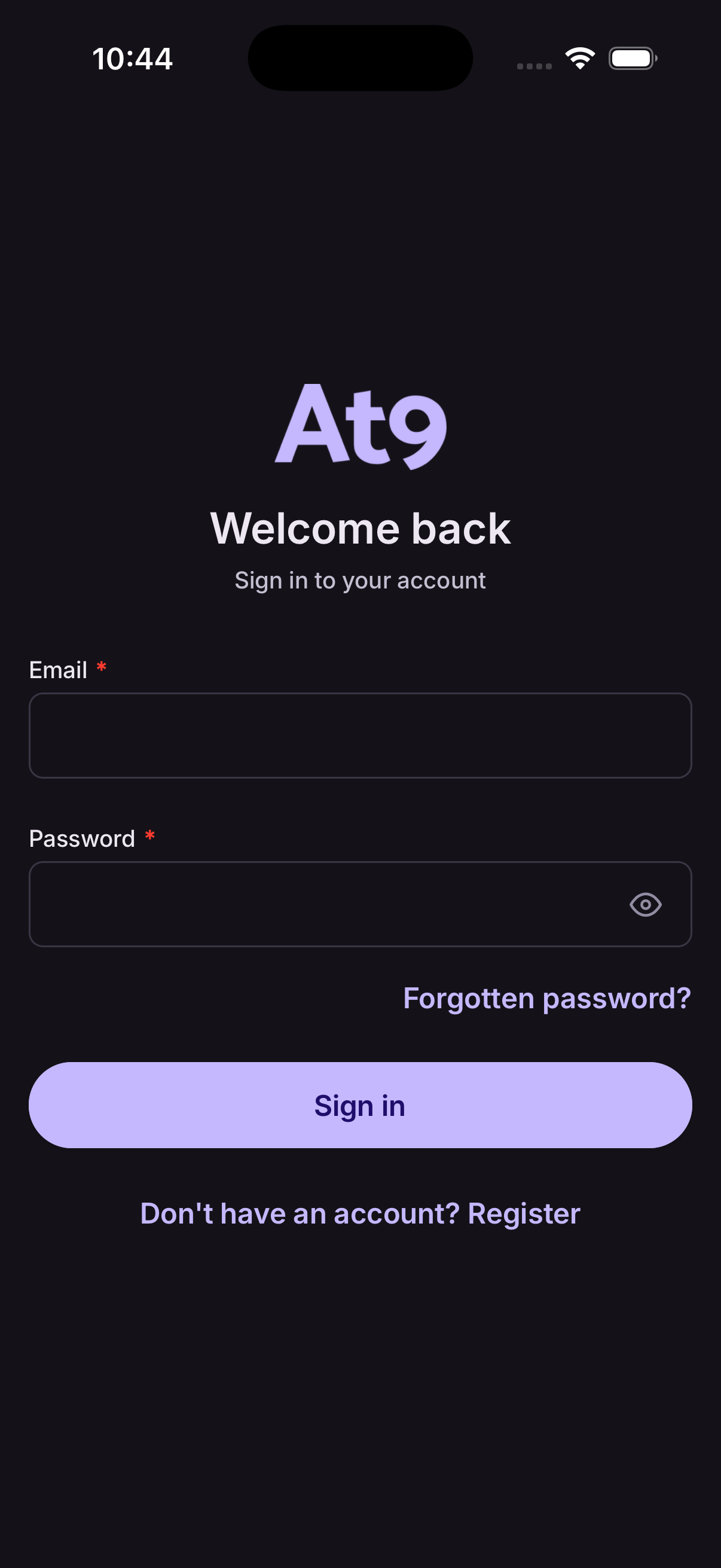
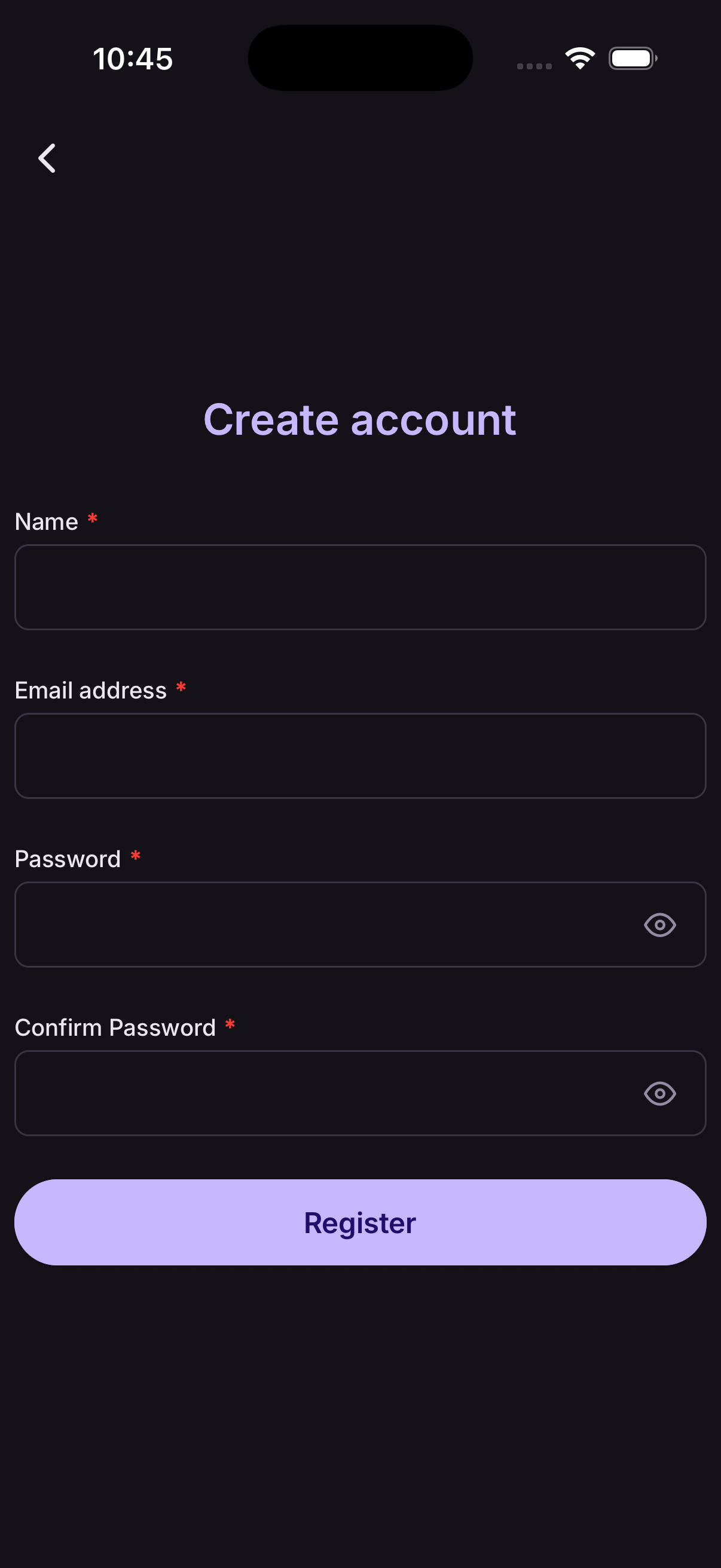
Check your spam folder if the verification email doesn't arrive within a minute.
Login
Open At9 and you'll be taken straight to the Login screen.
- Enter your email address and password.
- Tap Sign in.
If your account hasn't been verified yet, you'll be prompted to check your email before you can sign in.
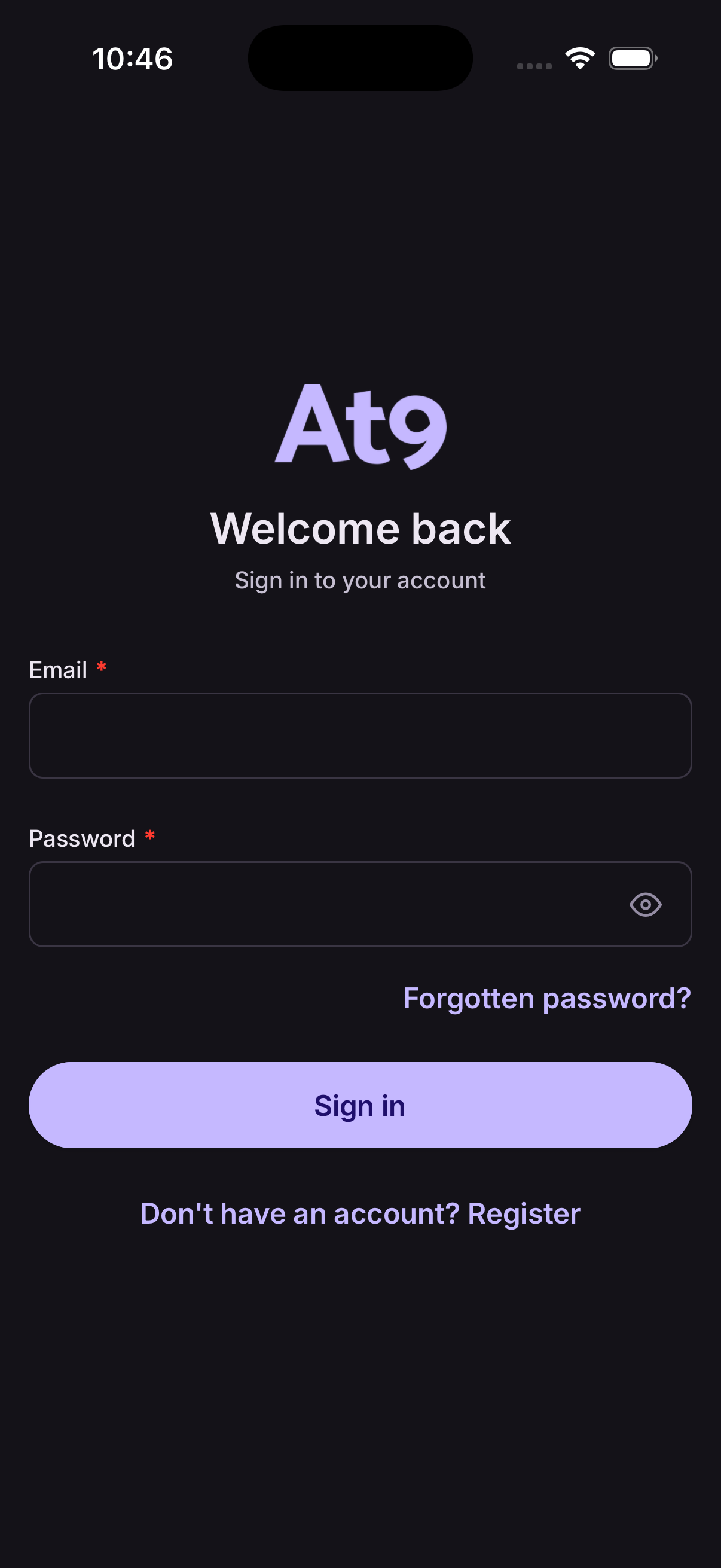
Forgotten your password? Tap Forgotten password? below the sign-in button.
Verify your account
After registering, At9 sends a verification email to the address you provided. You need to verify before you can sign in.
- Check your inbox for an email from At9.
- Tap the verify link inside the email.
- Return to the app and sign in — your account is now active.
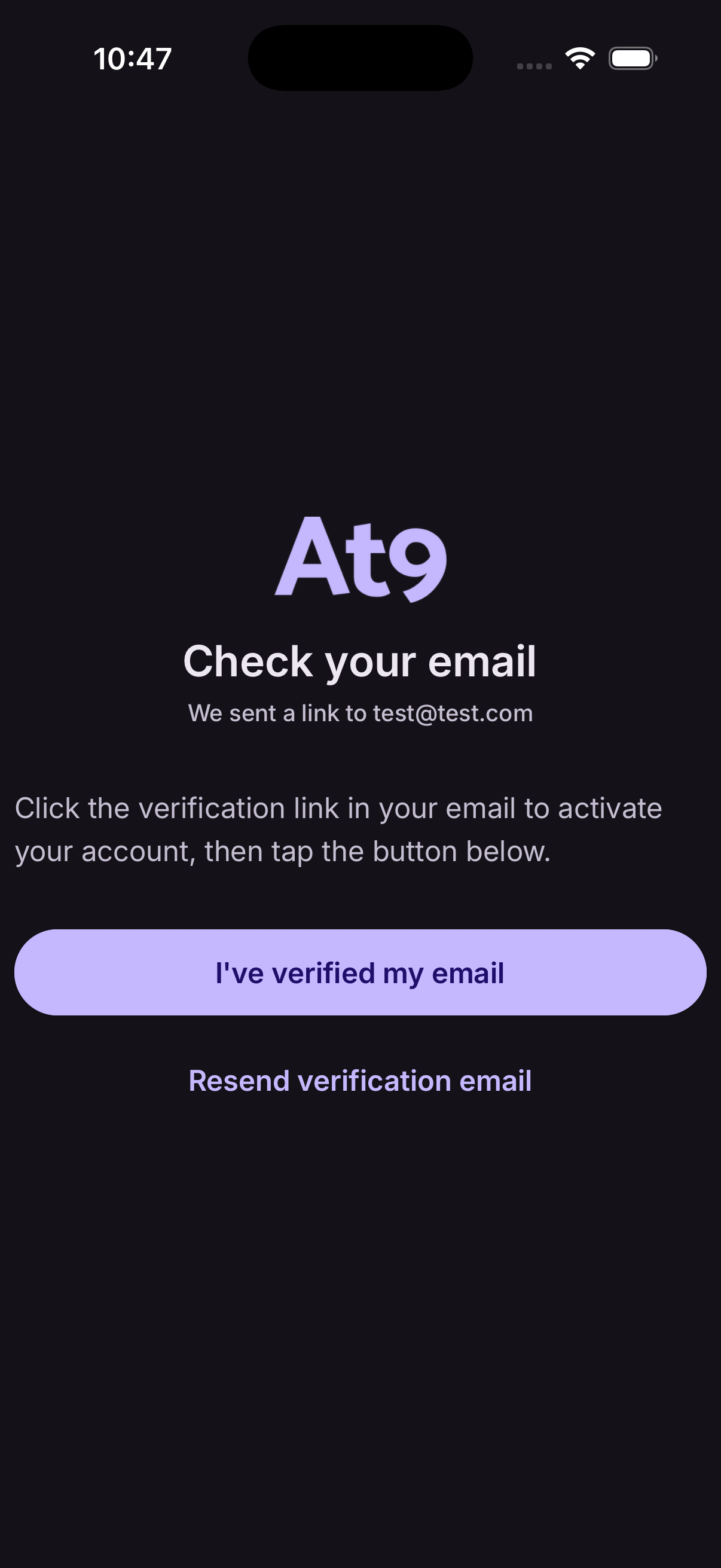
If you can't find the email, check your spam folder. You can also re-send verification from the login screen.
Forgotten password
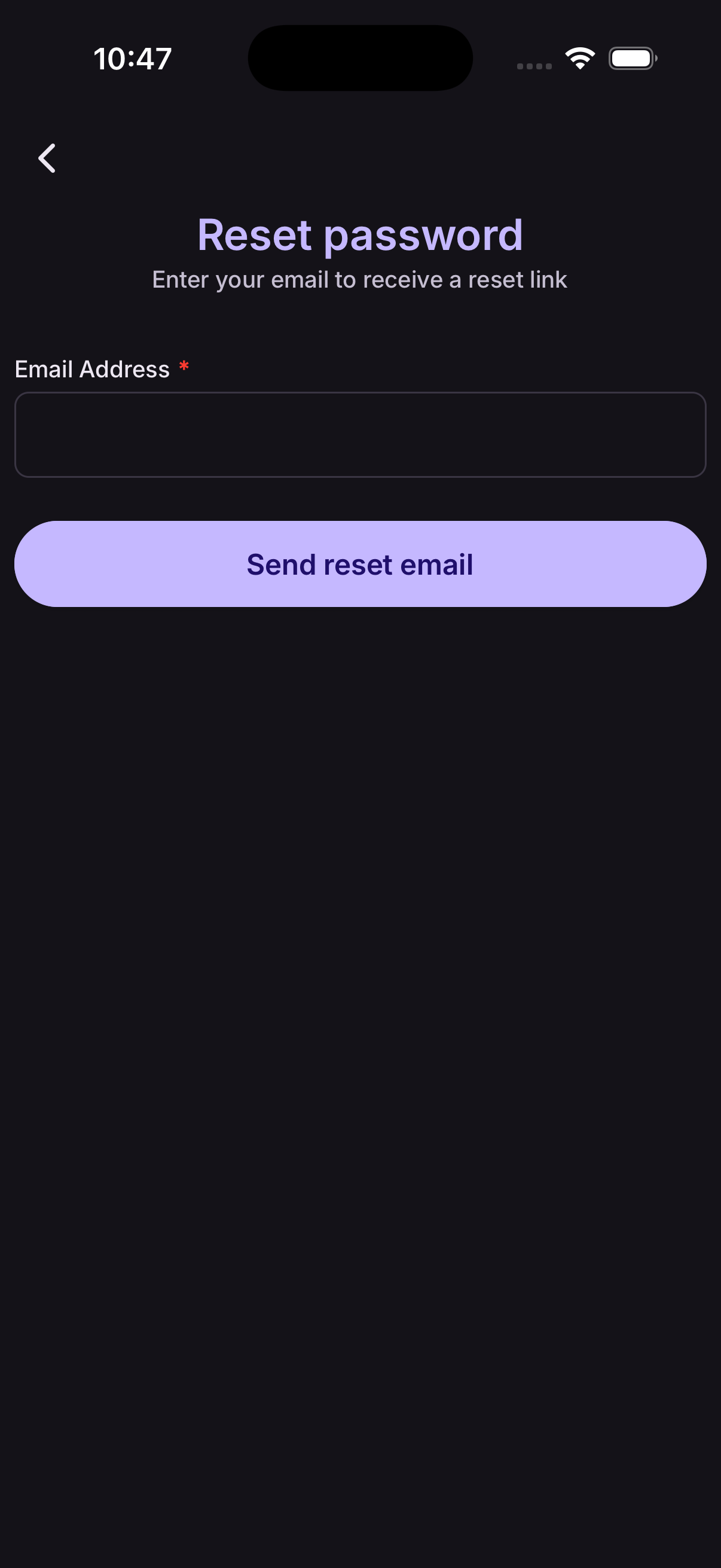
- From the Login screen, tap Forgotten password?
- Enter your email address and tap Send reset email.
- Check your inbox for a password reset link — tap it to set a new password.
- Return to the app and sign in with your new password.
Change password
- Go to your Profile and tap Account.
- Under Security, tap Change Password.
- Enter your current password, then your new password twice to confirm.
- Tap Update password to save.
You'll need to know your current password. If you've forgotten it, use Forgotten password instead.
Subscribe to Solo or Team
At9 offers two plans. You can try either free for 90 days — no credit card required.
- Solo — for individuals managing bookings on their own. Full access to all booking and availability features.
- Team — everything in Solo, plus the ability to add multiple users to your organisation and assign admin roles.
To subscribe or manage your plan:
- From the Admin screen, tap Manage Subscription.
- Choose Solo or Team and follow the prompts to start your trial or activate a paid plan.
If you need to add team members later, you can upgrade from Solo to Team at any time.
Close account
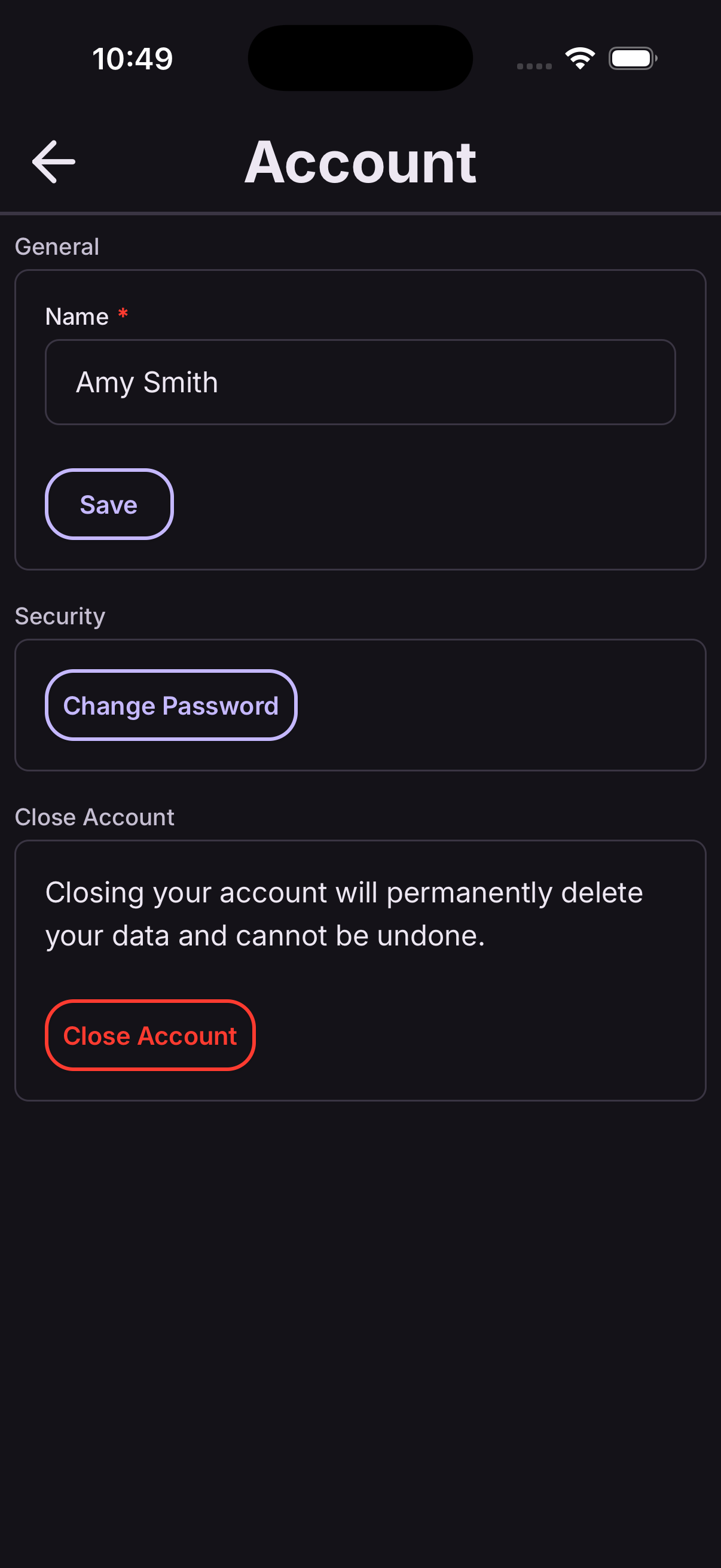
- Go to your Profile and tap Account.
- Under Close Account, tap Close Account.
- Enter your password to confirm — this step prevents accidental deletion.
- Your account and all associated data are permanently deleted and cannot be recovered.
Need a copy of your data first? Email contact@at9.app and we'll send it to you within 24 hours.
Create an organisation
You need an organisation to start taking bookings. If you haven't created one yet, you'll see a + button on the Admin screen.
- From the Admin screen, tap the + button.
- Enter your Organisation Name and a short Description (both required).
- Optionally add a Short Name — this becomes the last part of your public booking link (e.g.
at9.app/book/your-name). - Tap Save.
Once saved you'll see your organisation on the Admin screen and can start configuring settings and adding entities.
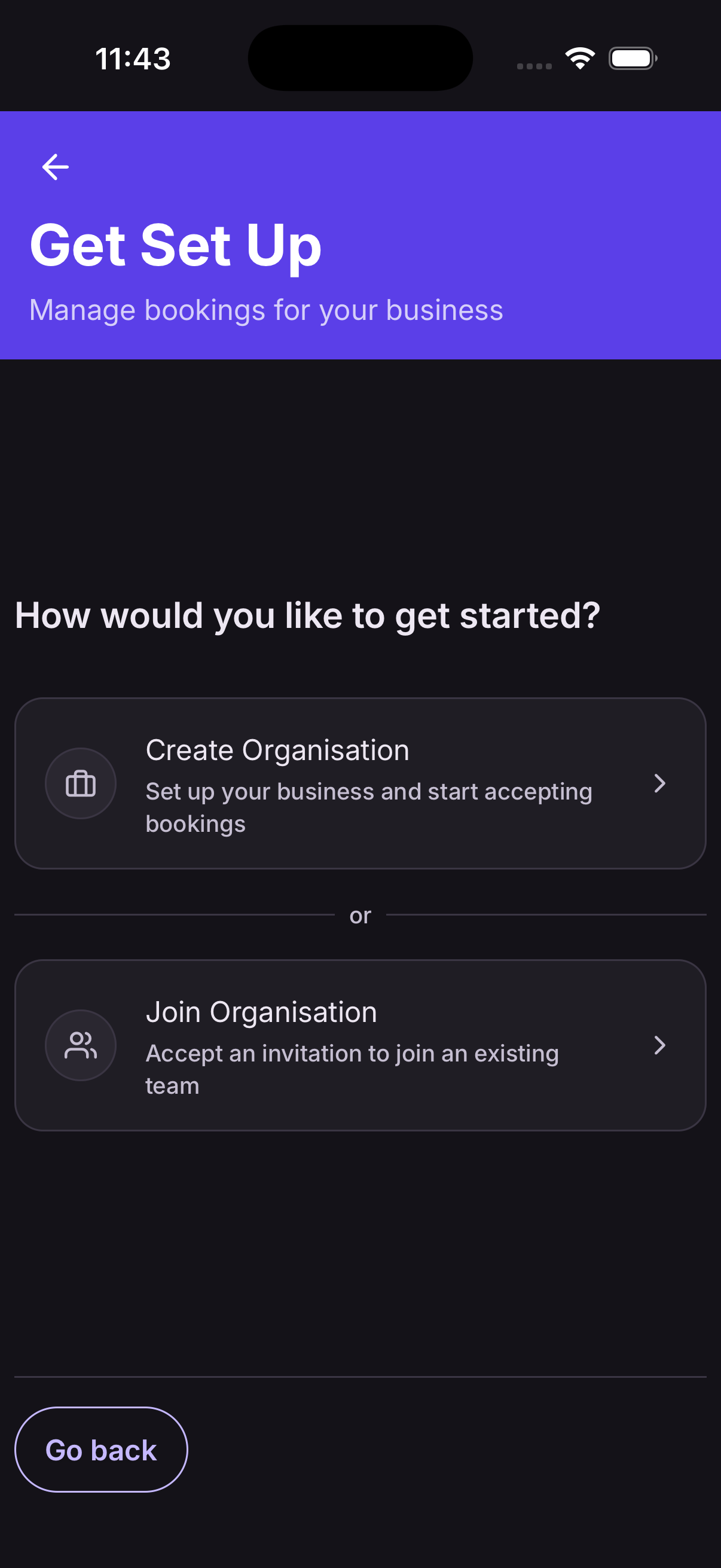
Join an organisation
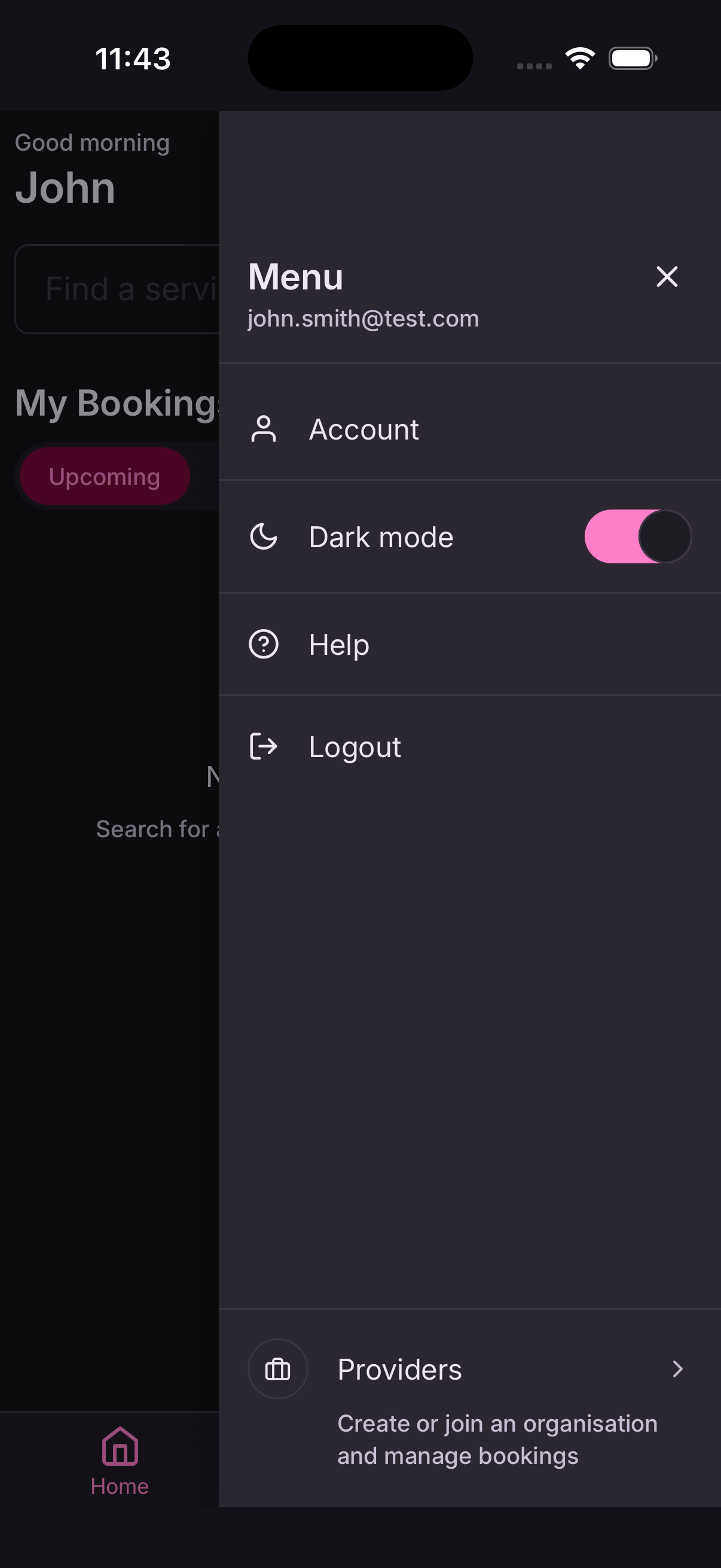
To join an existing organisation, an admin needs to invite you. Before they do:
- Make sure you have At9 installed and have registered an account.
- Let the admin know the email address you registered with.
Once the admin sends an invite from Admin → Team, you'll be added to the organisation. Sign in to the app and you'll have access straight away.
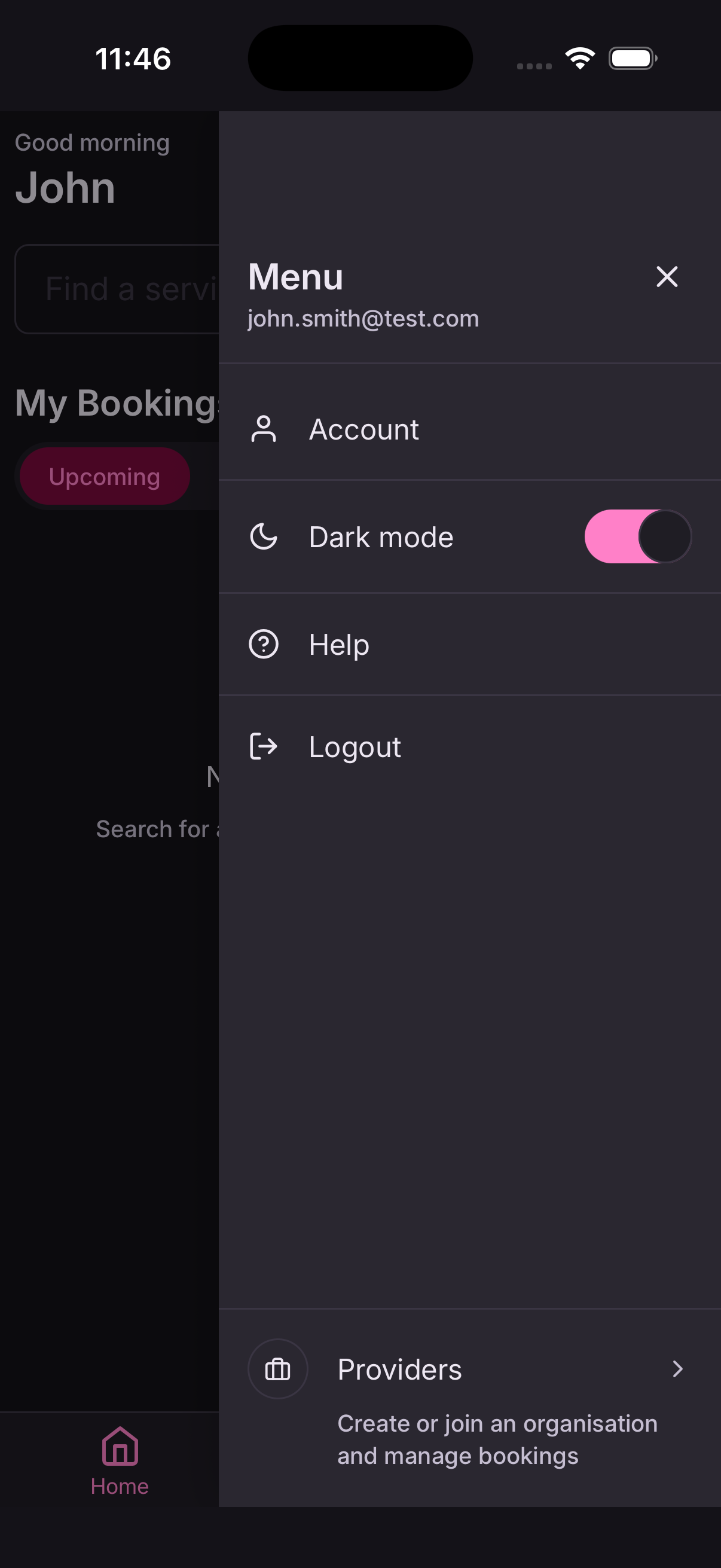
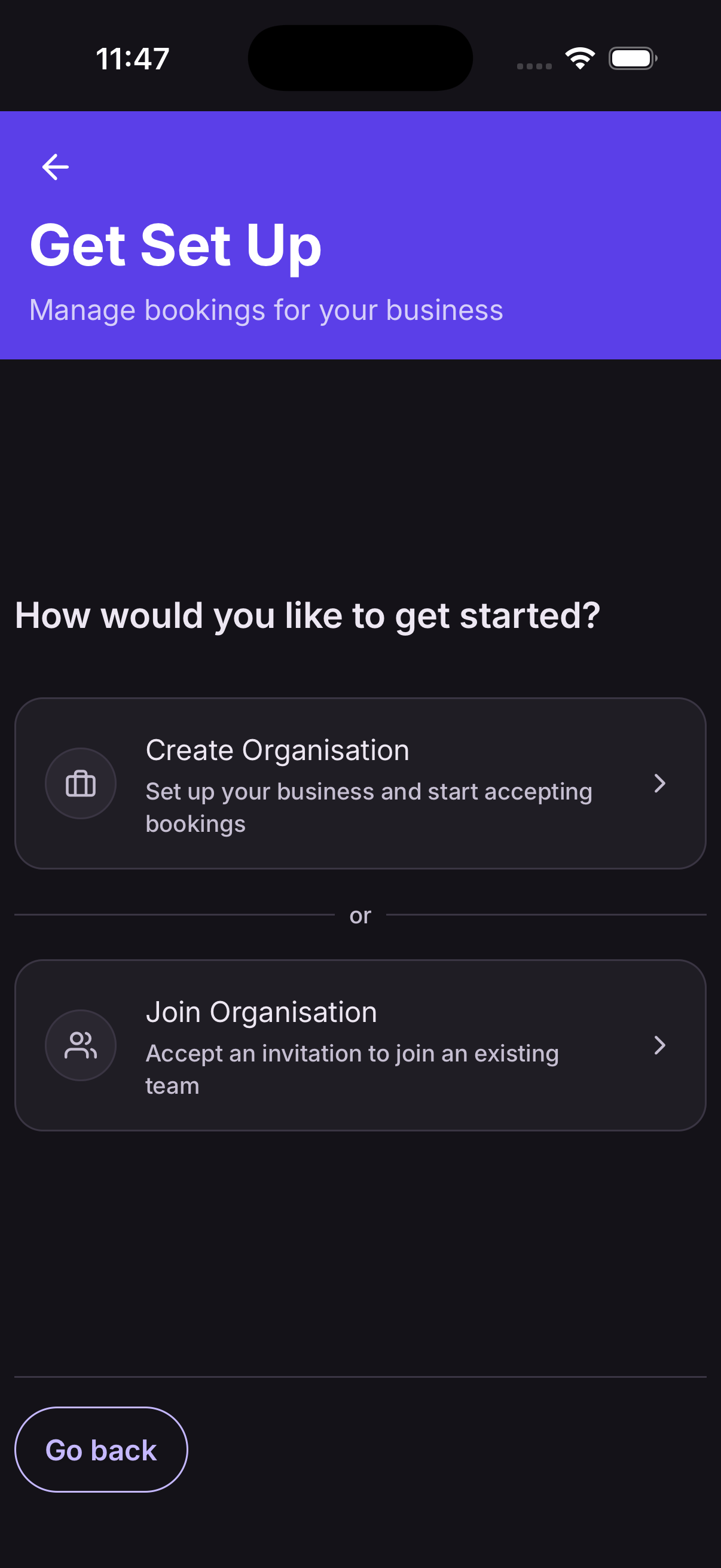
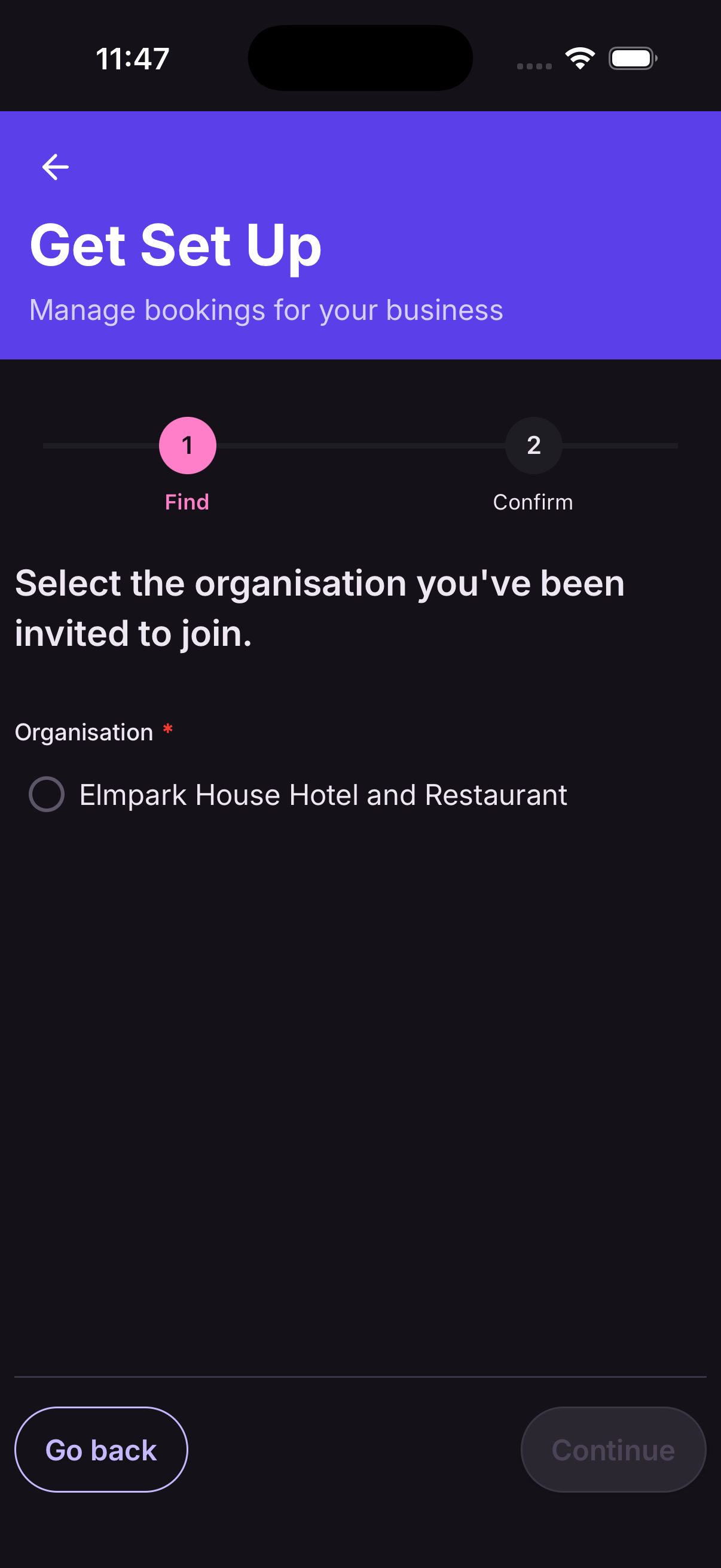
You won't need your own subscription — team members are covered by the organisation's Team plan.
Change name and description
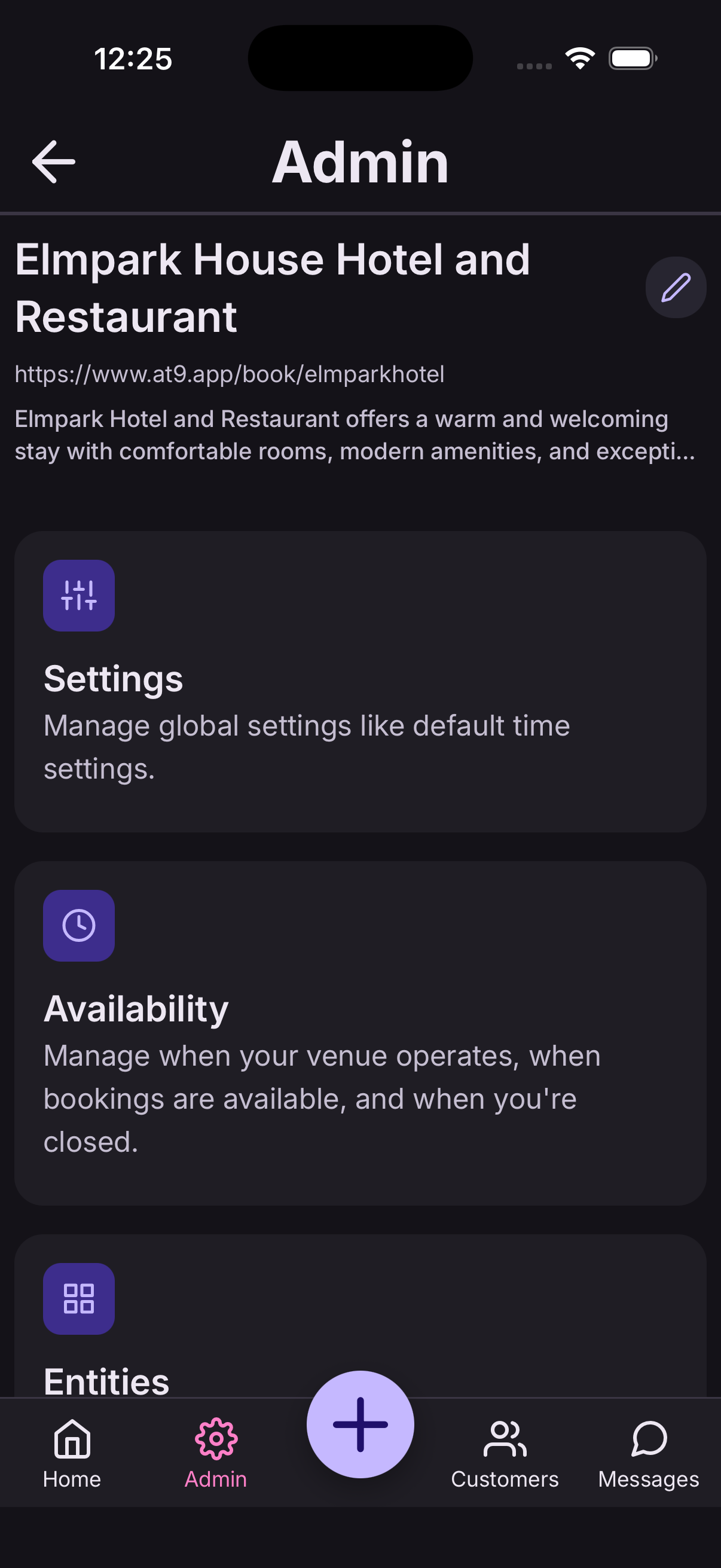
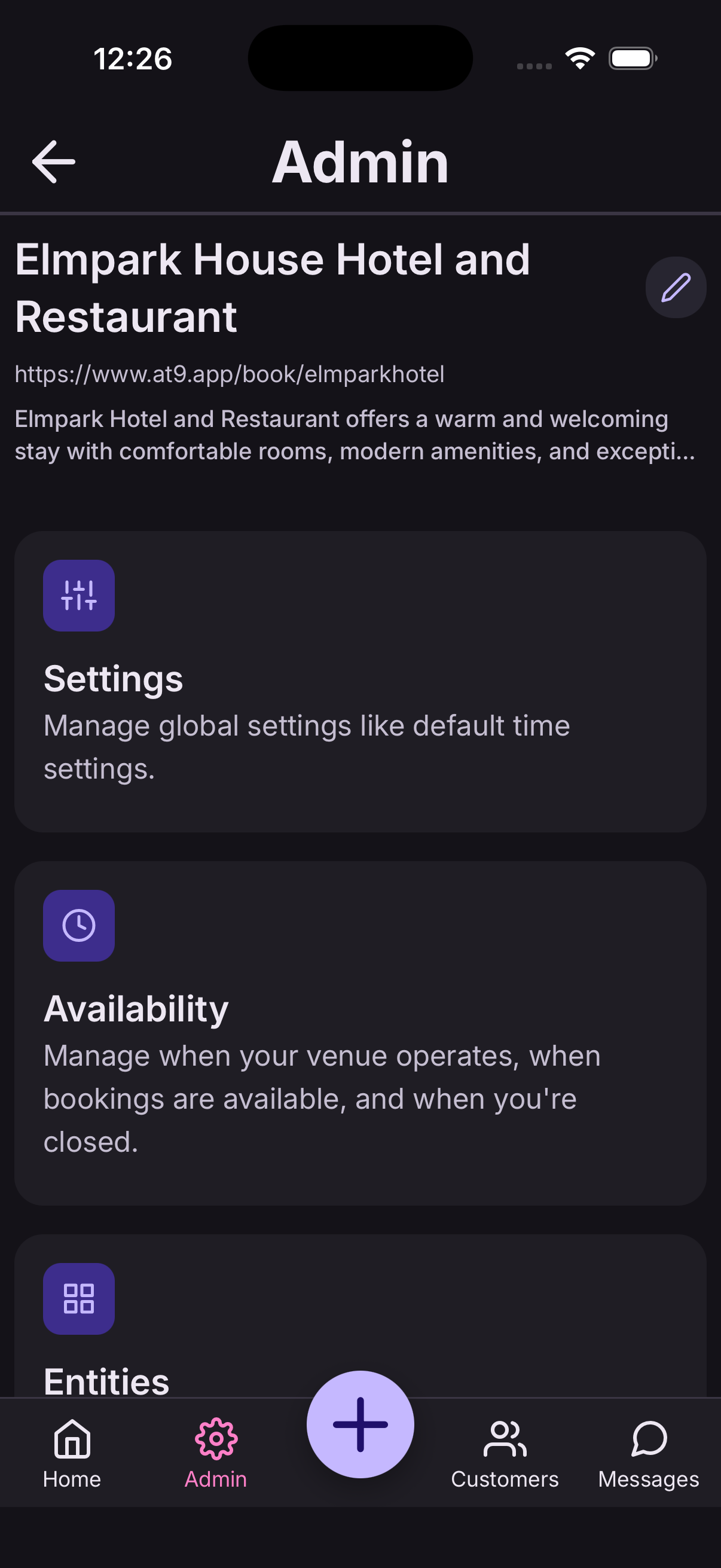
- From the Admin screen, tap the pencil icon next to your organisation name.
- Update the Name or Description fields as needed.
- Tap Save.
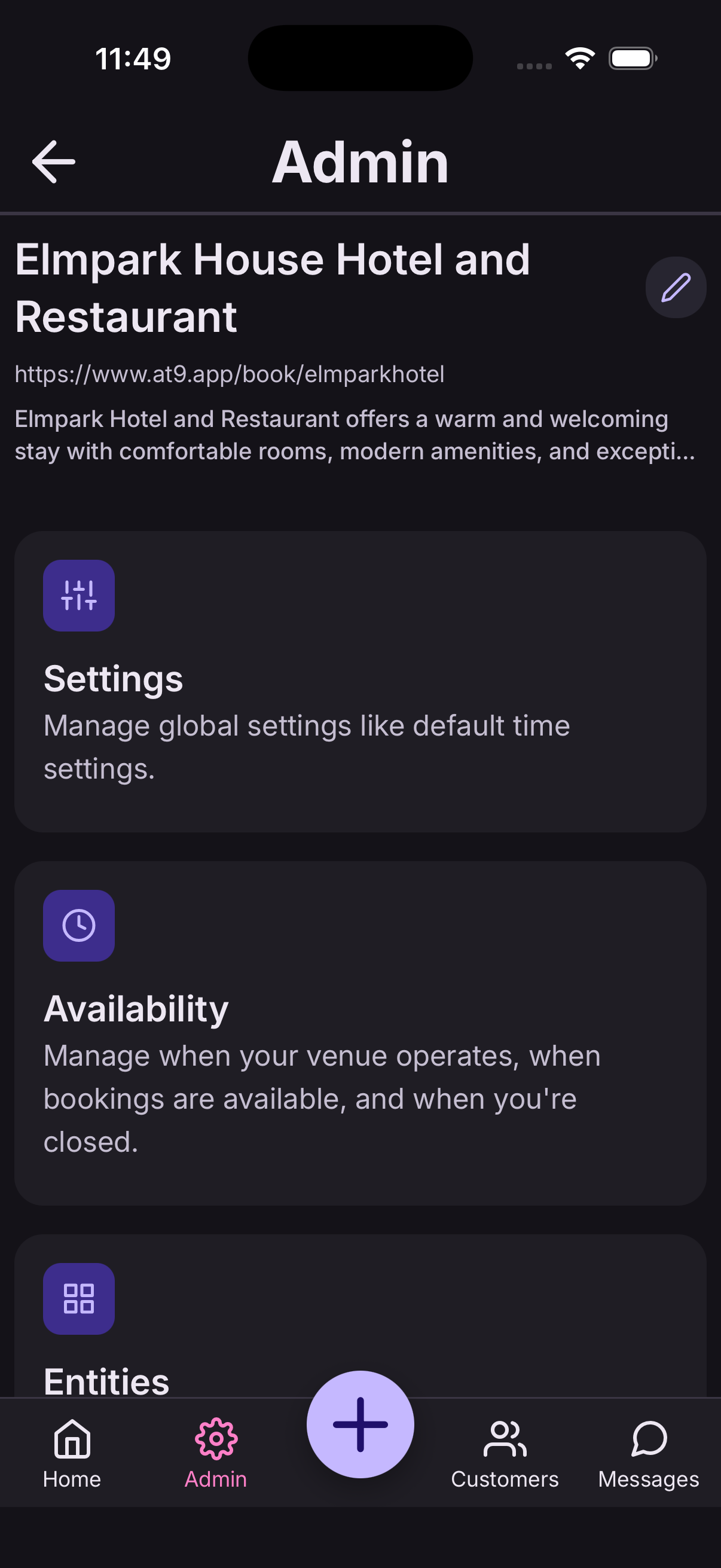
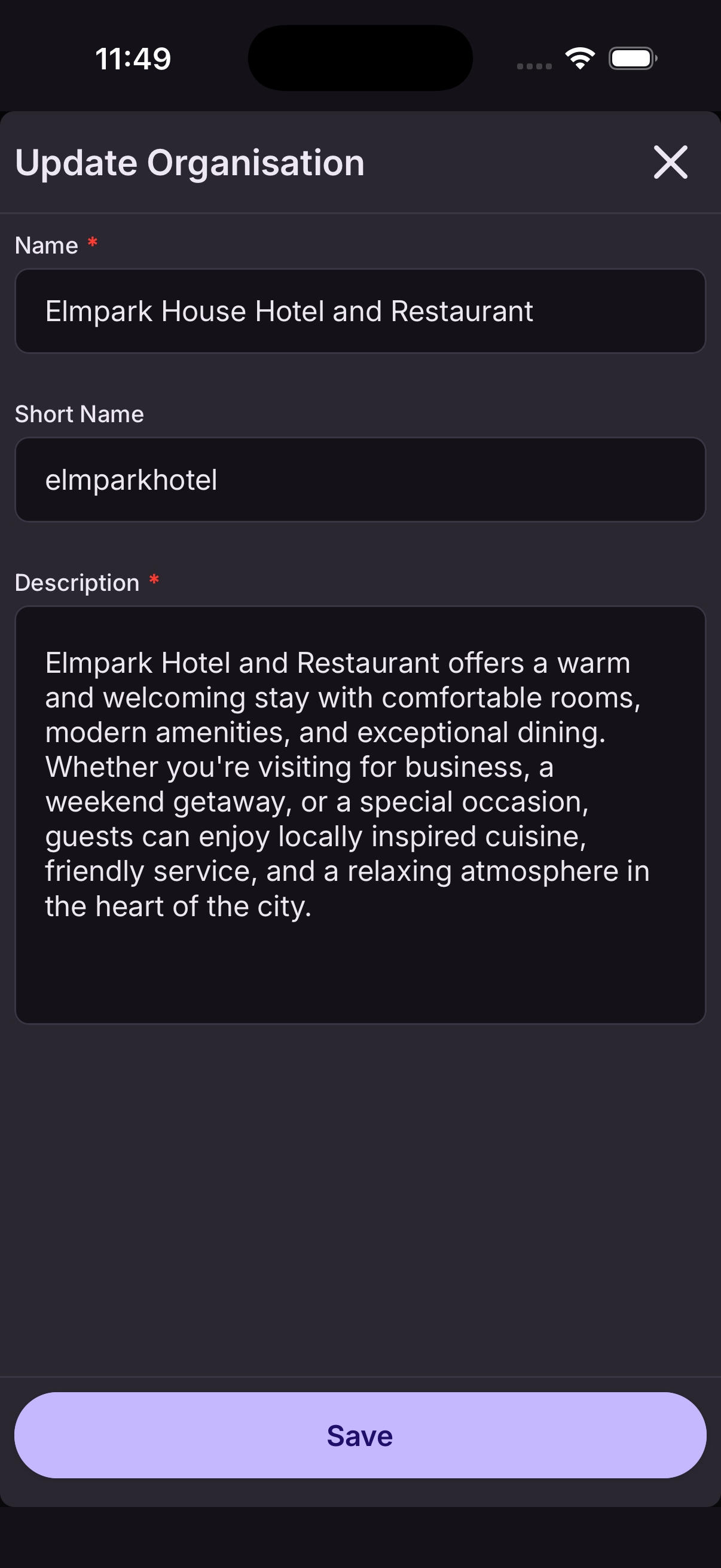
Only organisation admins can change the name and description.
Add a web booking link
Your web booking link lets customers book directly from a link you share on Instagram, Facebook, or your website — no app required on their end.
- From the Admin screen, tap the pencil icon next to your organisation name.
- In the Short Name field, enter a unique identifier (lowercase letters, numbers, and hyphens only).
- At9 checks availability in real time — you'll see a confirmation or a "Short Name already taken" message as you type.
- Tap Save.
Your booking link will be: https://www.at9.app/book/your-short-name
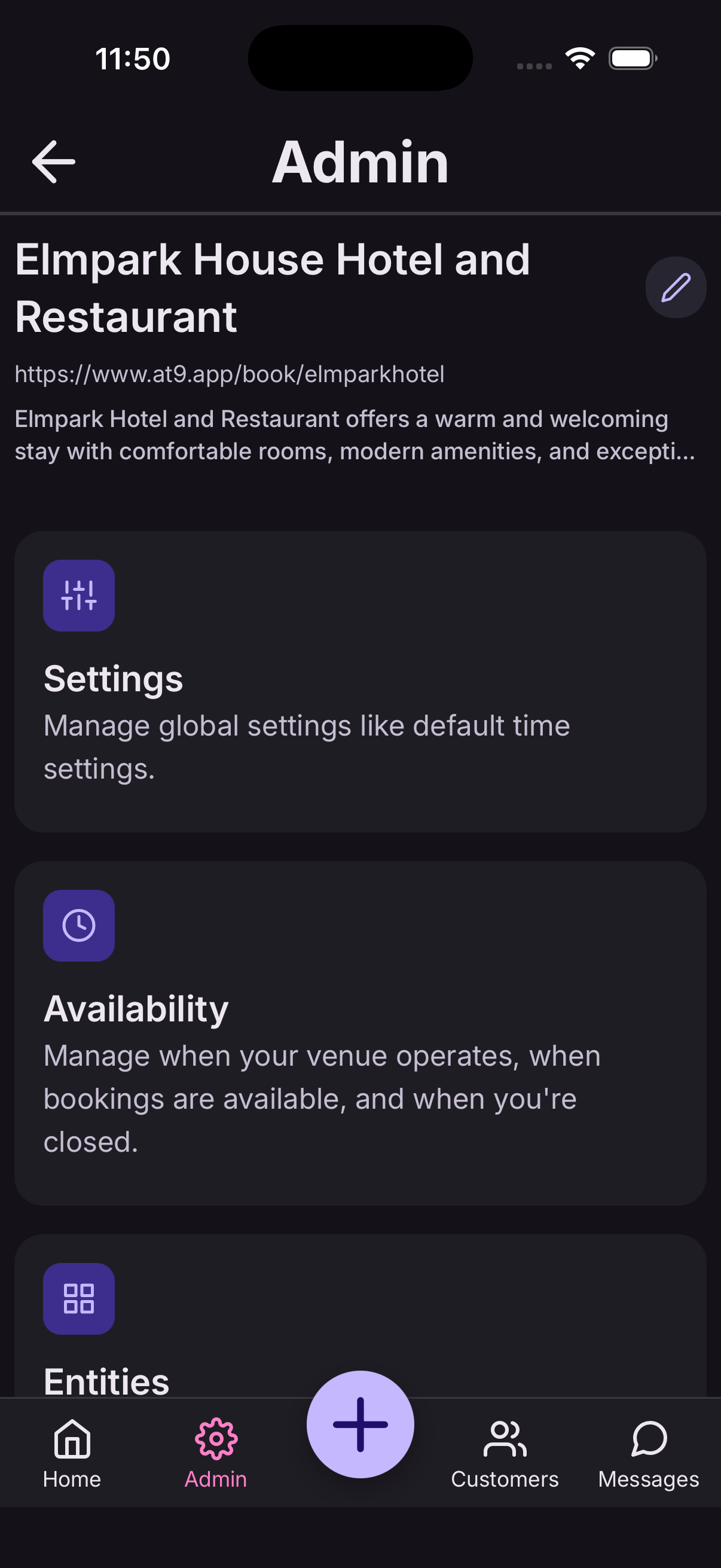
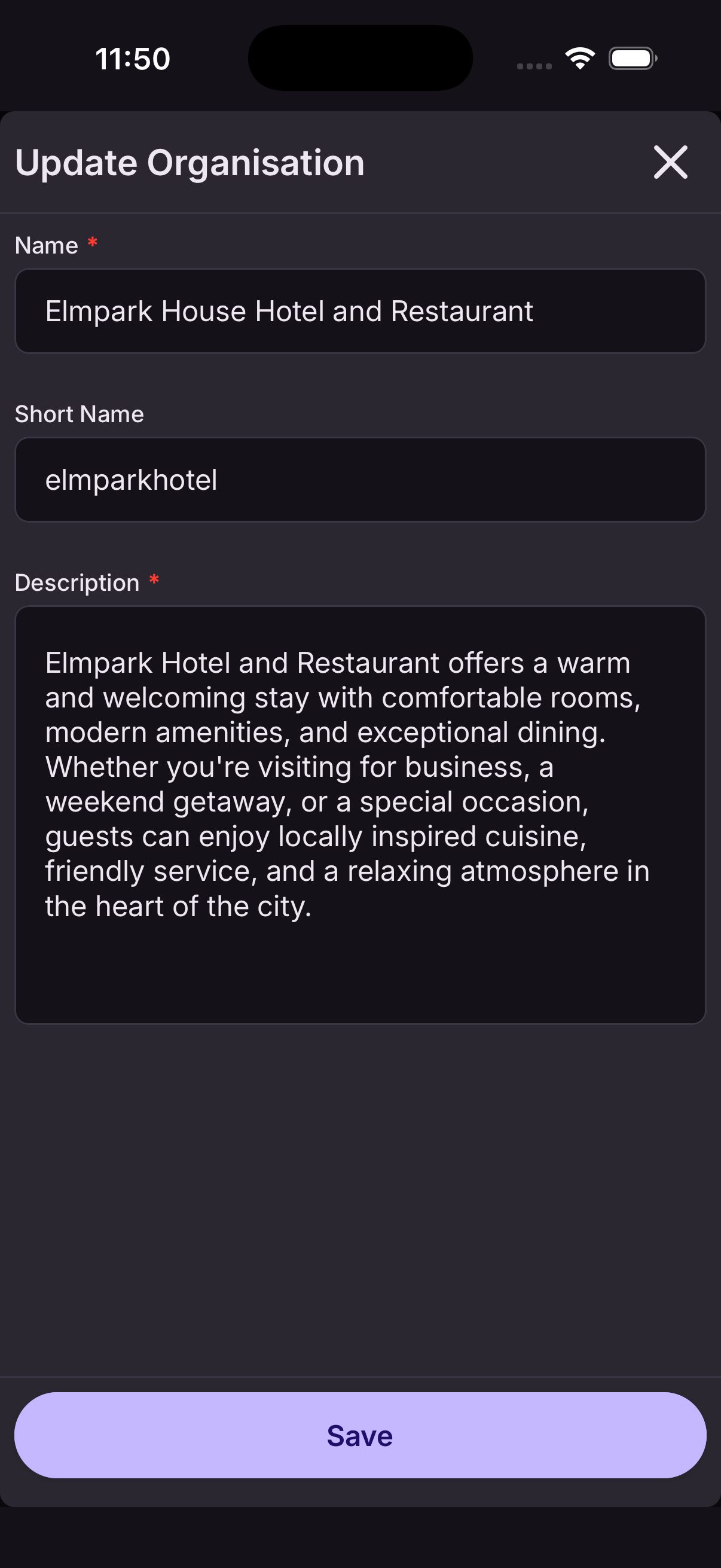
Keep it short and memorable — something close to your business name works well (e.g. at9.app/book/the-crown-inn).
Search visibility
Control whether customers using the At9 app can find your organisation through search.
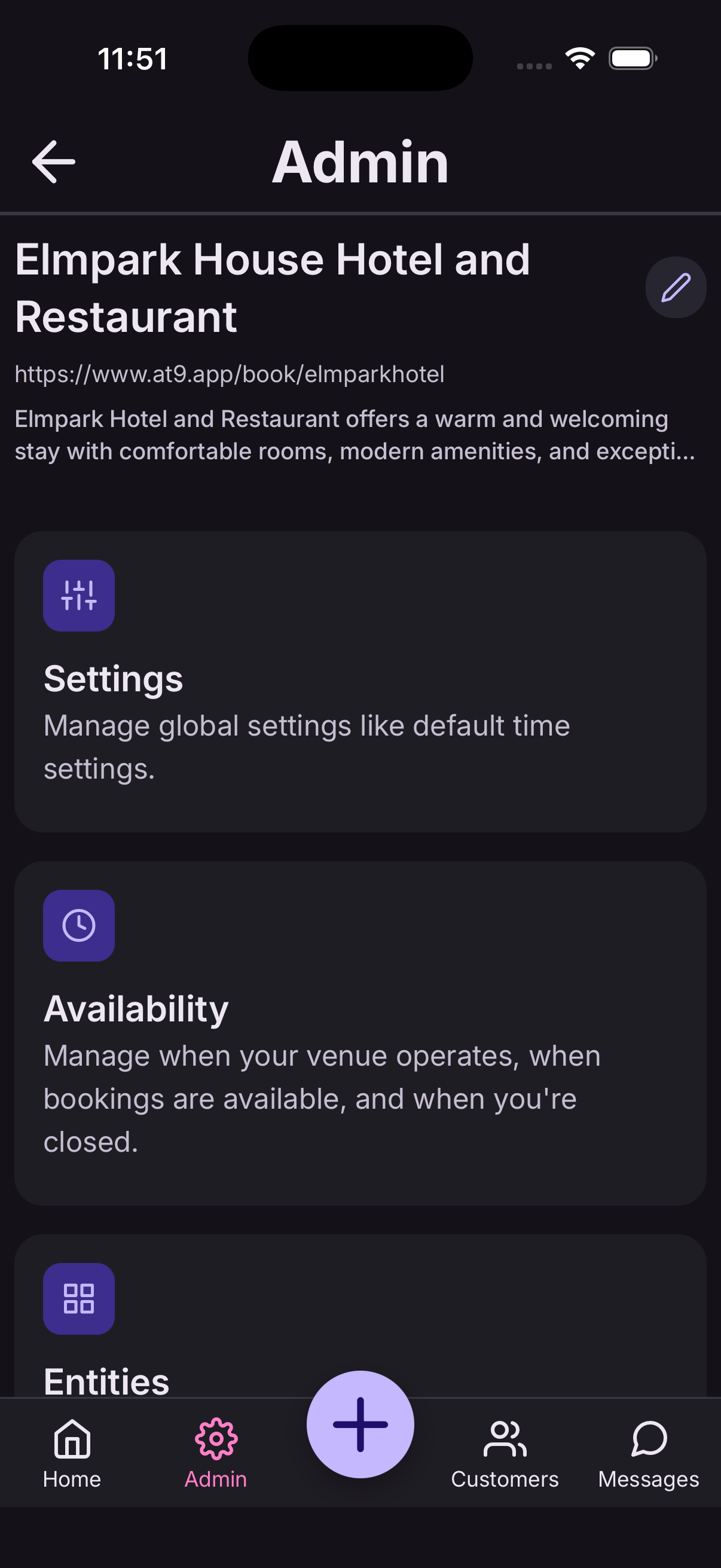
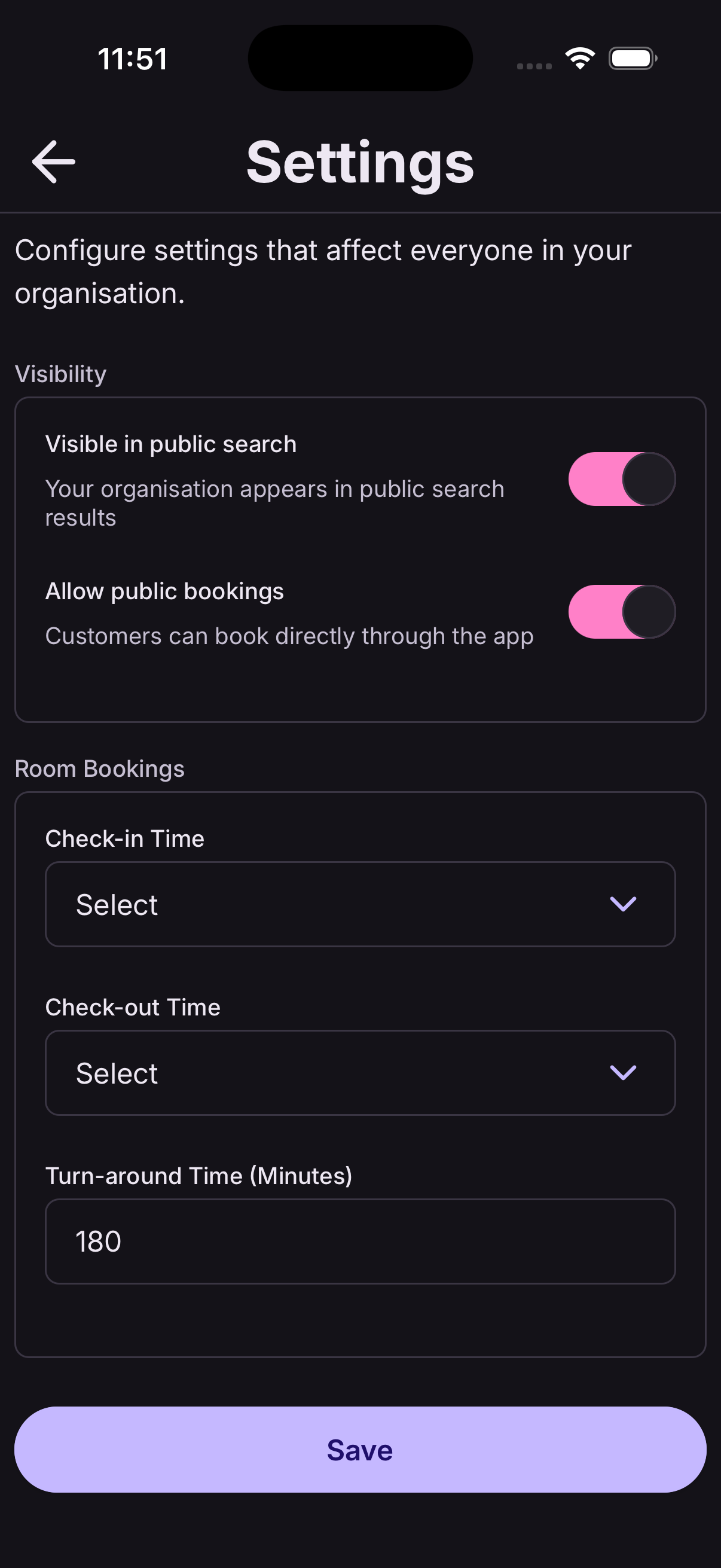
- Go to Admin → Settings.
- Under Visibility, toggle Visible in public search on or off.
- Tap Save.
- On — customers can find your organisation by searching in the At9 app.
- Off — your organisation is hidden from search; only people with your direct booking link can find you.
Enable public bookings
This controls whether customers can make bookings directly — through your web booking link or through the At9 app.
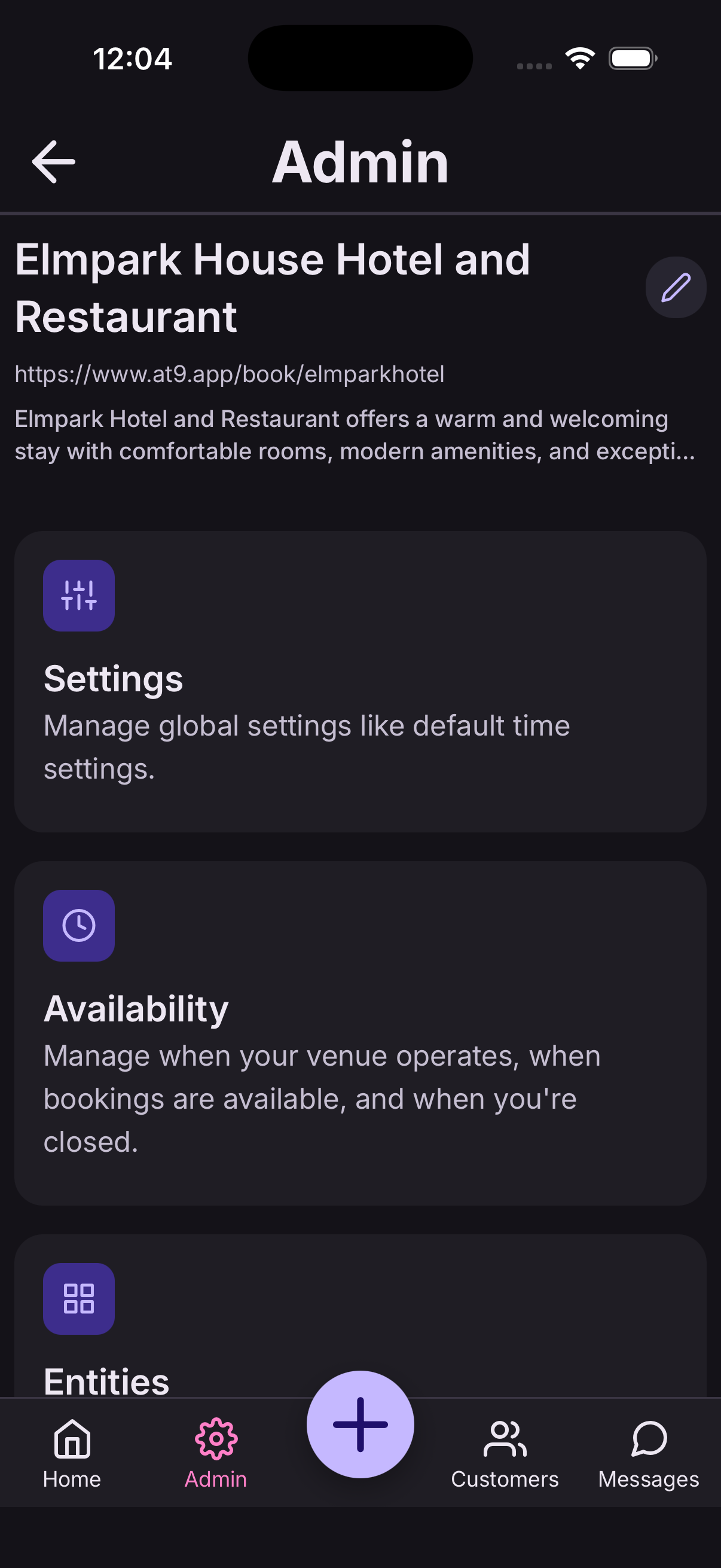
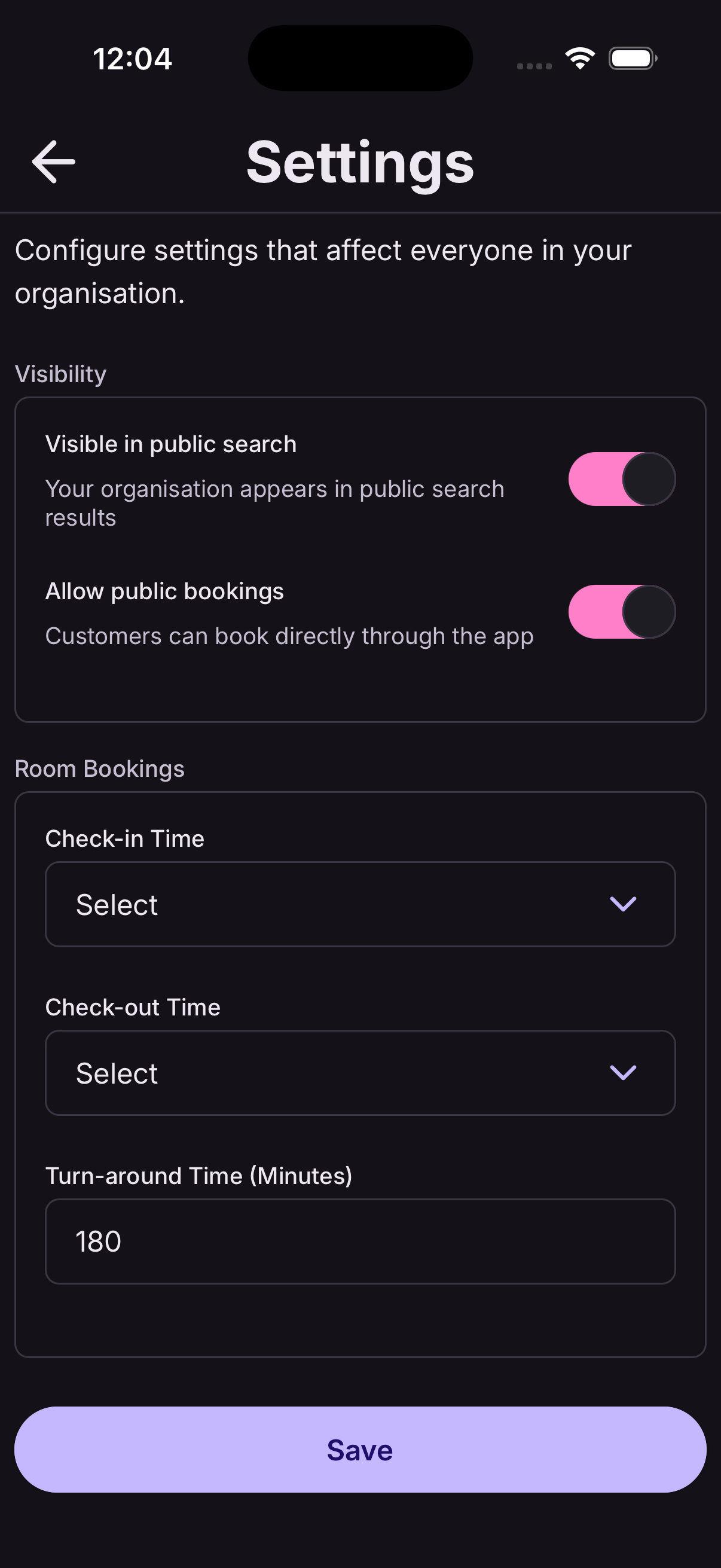
- Go to Admin → Settings.
- Under Visibility, toggle Allow public bookings on or off.
- Tap Save.
- On — customers can book directly without needing your approval first.
- Off — public bookings are disabled; all bookings must be created by your team.
Add a team member
Adding team members requires a Team subscription and admin access.
- Ask the new team member to install At9 and register an account first.
- From the Admin screen, tap the Team tile.
- Tap the + button to open the invite panel.
- Enter the team member's email address (the one they registered with).
- Tap Send Invite — they'll be added to your organisation immediately.
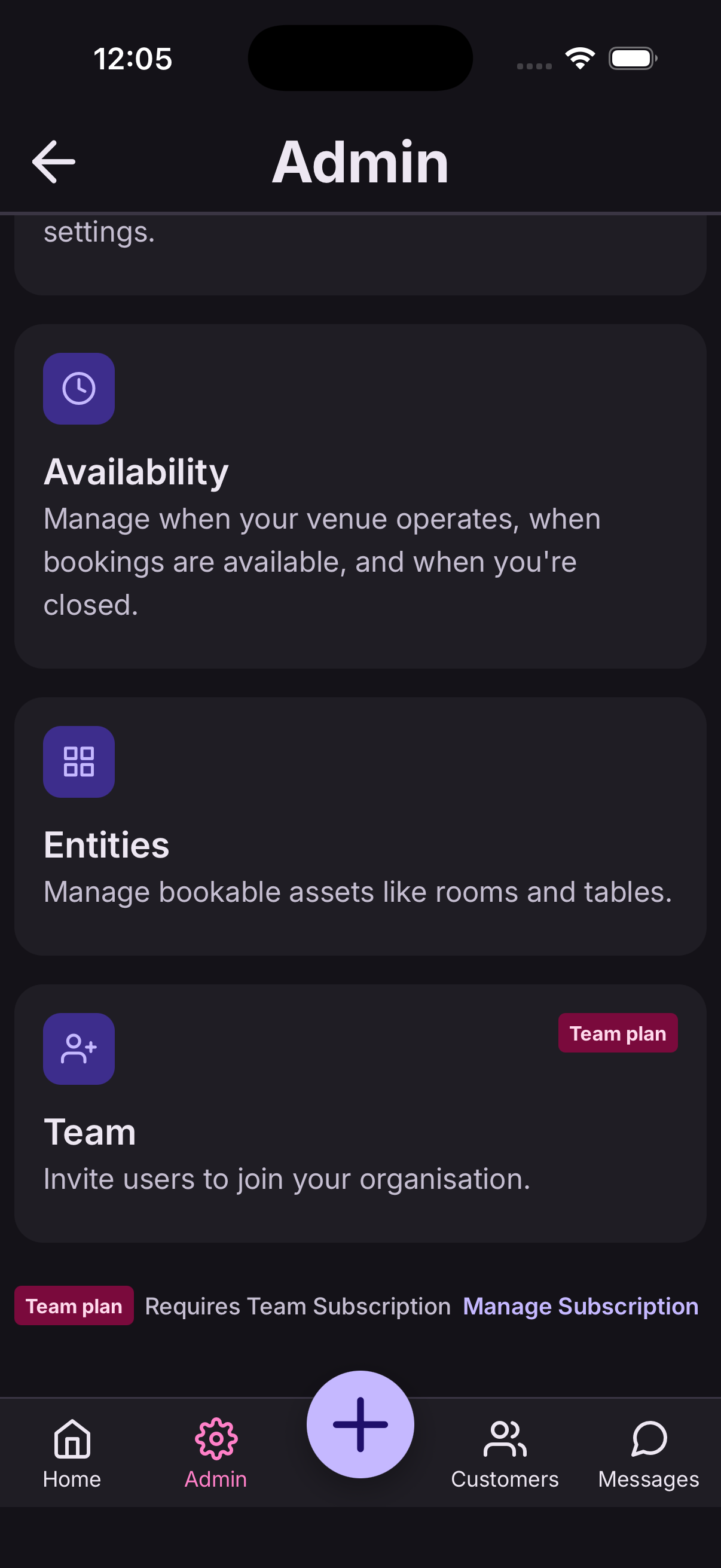
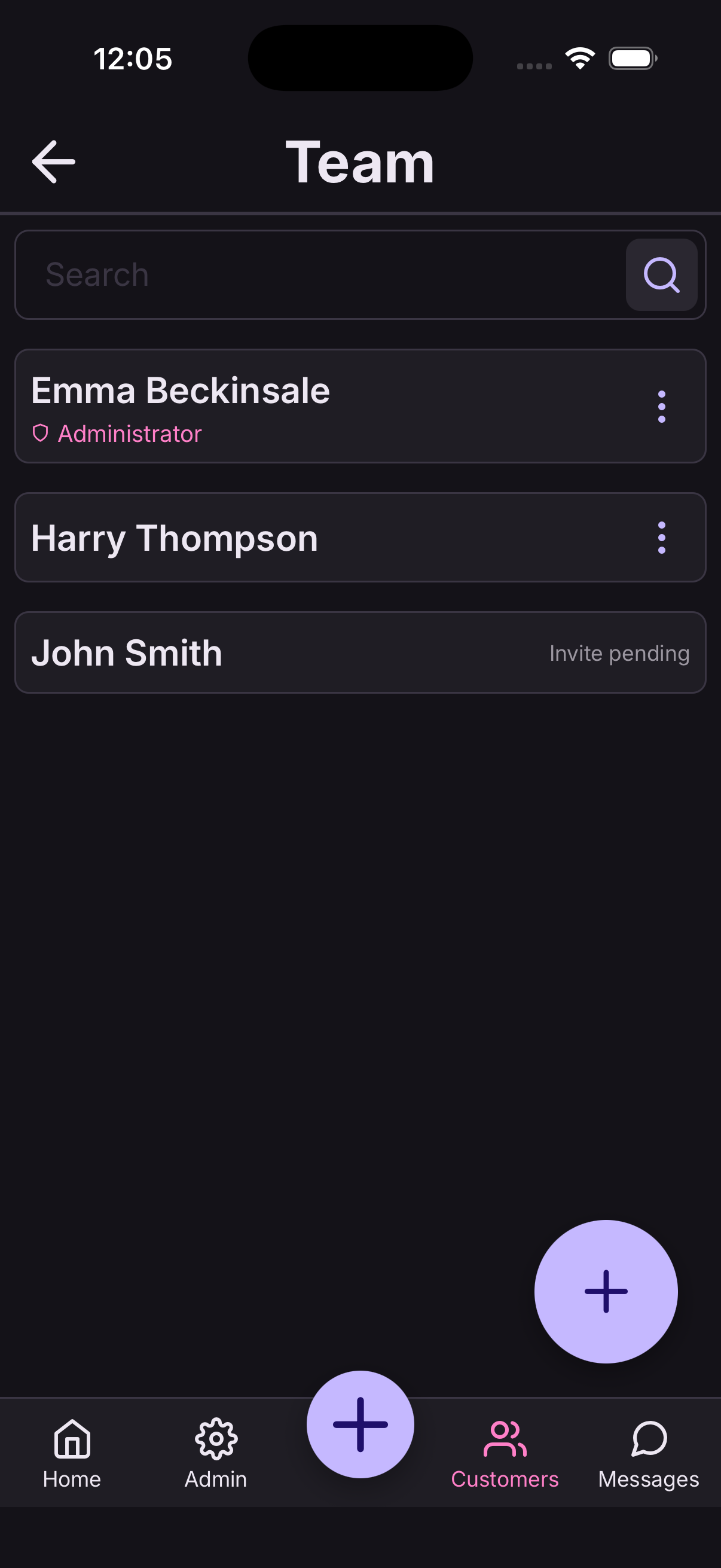
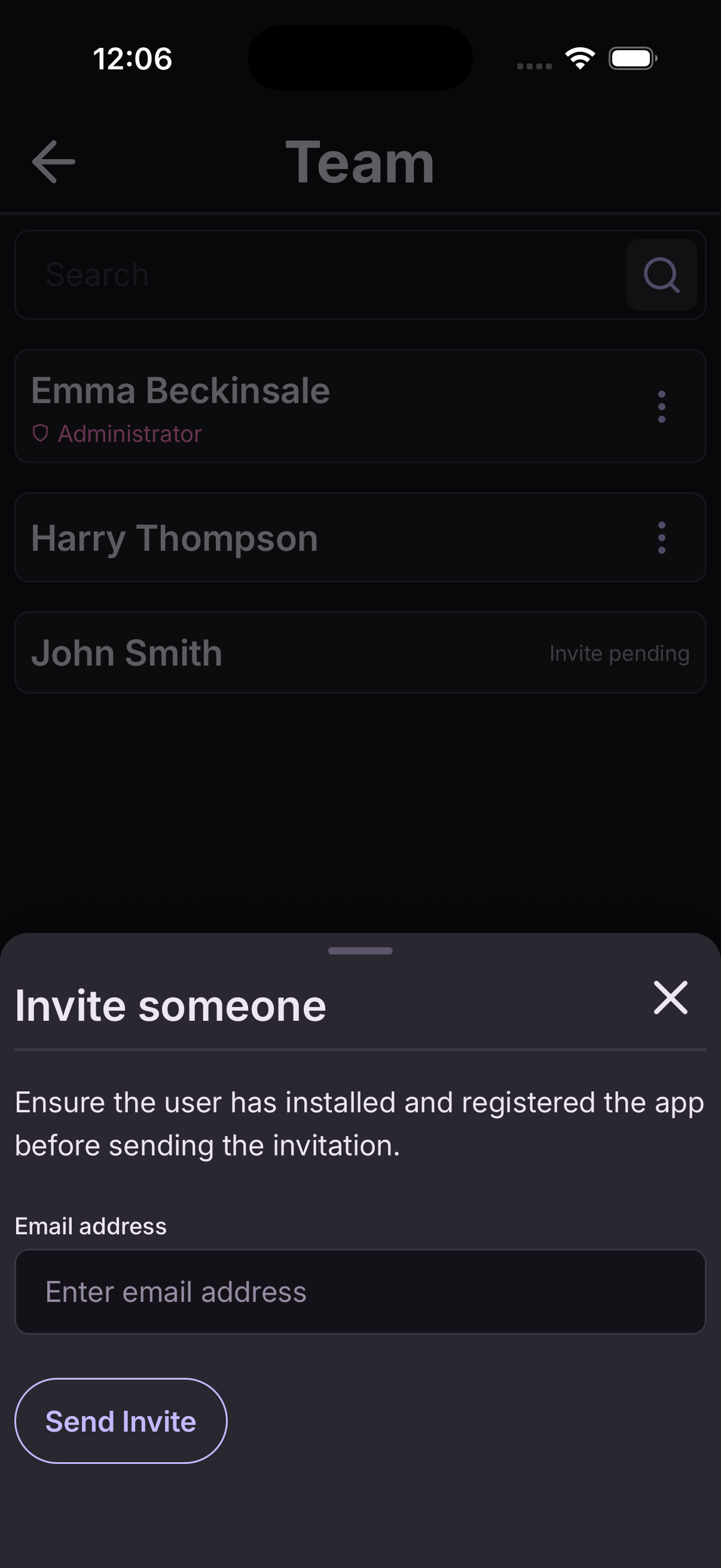
You can view, disable, or remove team members from the Team screen at any time.
Add a booking
The booking form adapts automatically based on whether you're in Room or Table mode — switch between them using the selector in the schedule header.
Tap the + button at the top of the schedule, or use the floating add button.
Room booking
- Select a customer (search for an existing one or add new).
- Choose a room from your entities.
- Set the check-in and check-out date and time.
- Tap Book to save.
Table booking
- Select a customer.
- Choose a table from your entities.
- Pick the date and time for the booking.
- Tap Book to save.
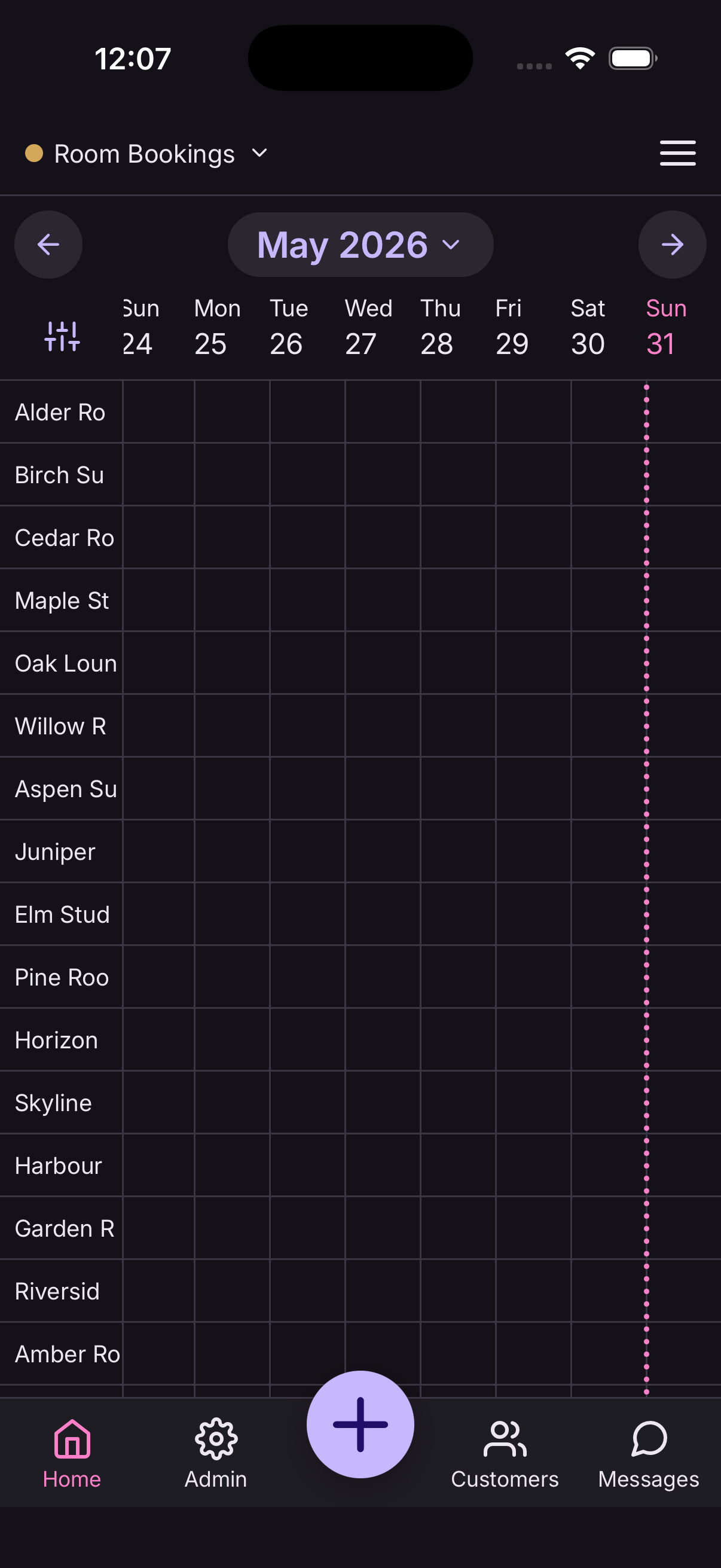
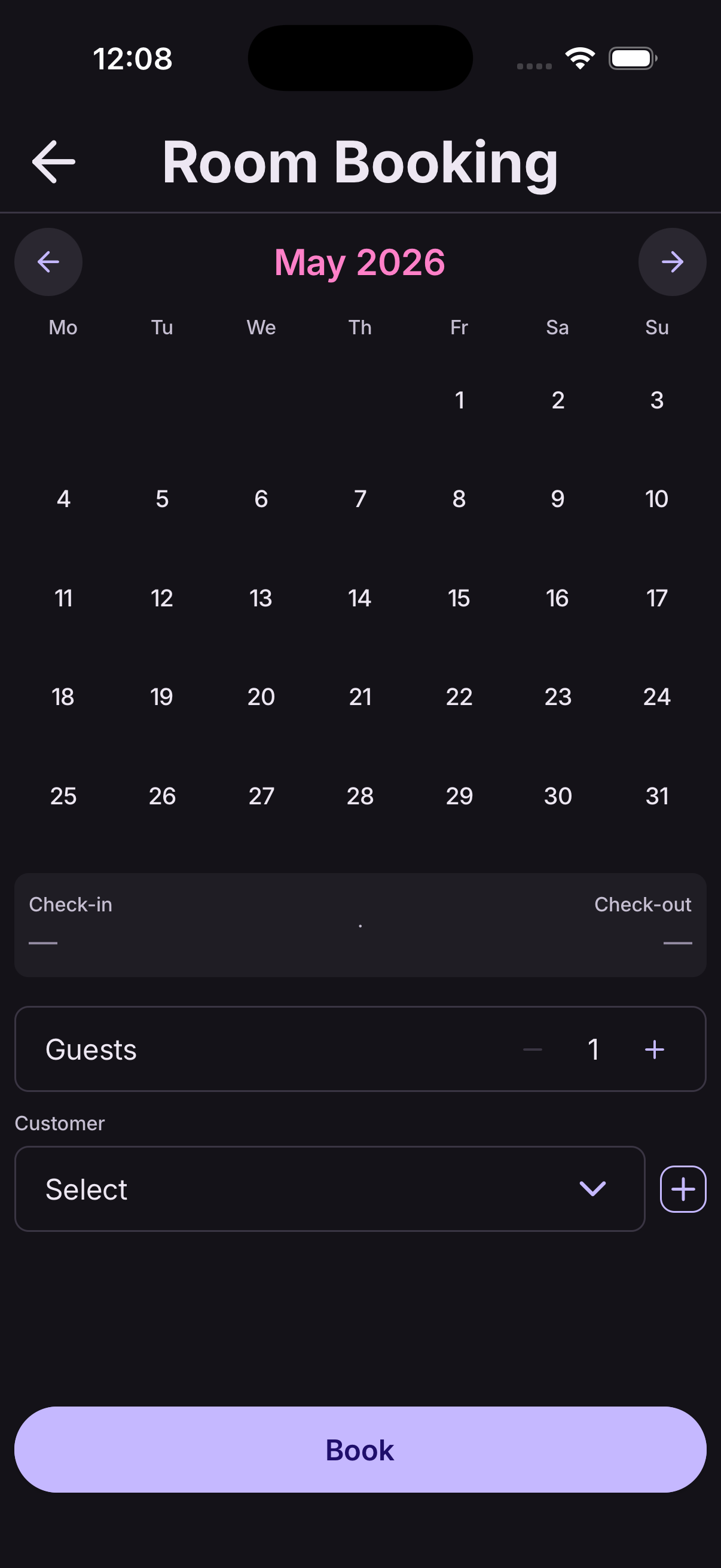
At9 checks availability as you fill in the details. If the slot is already taken, you'll see a warning before saving.
Update a booking
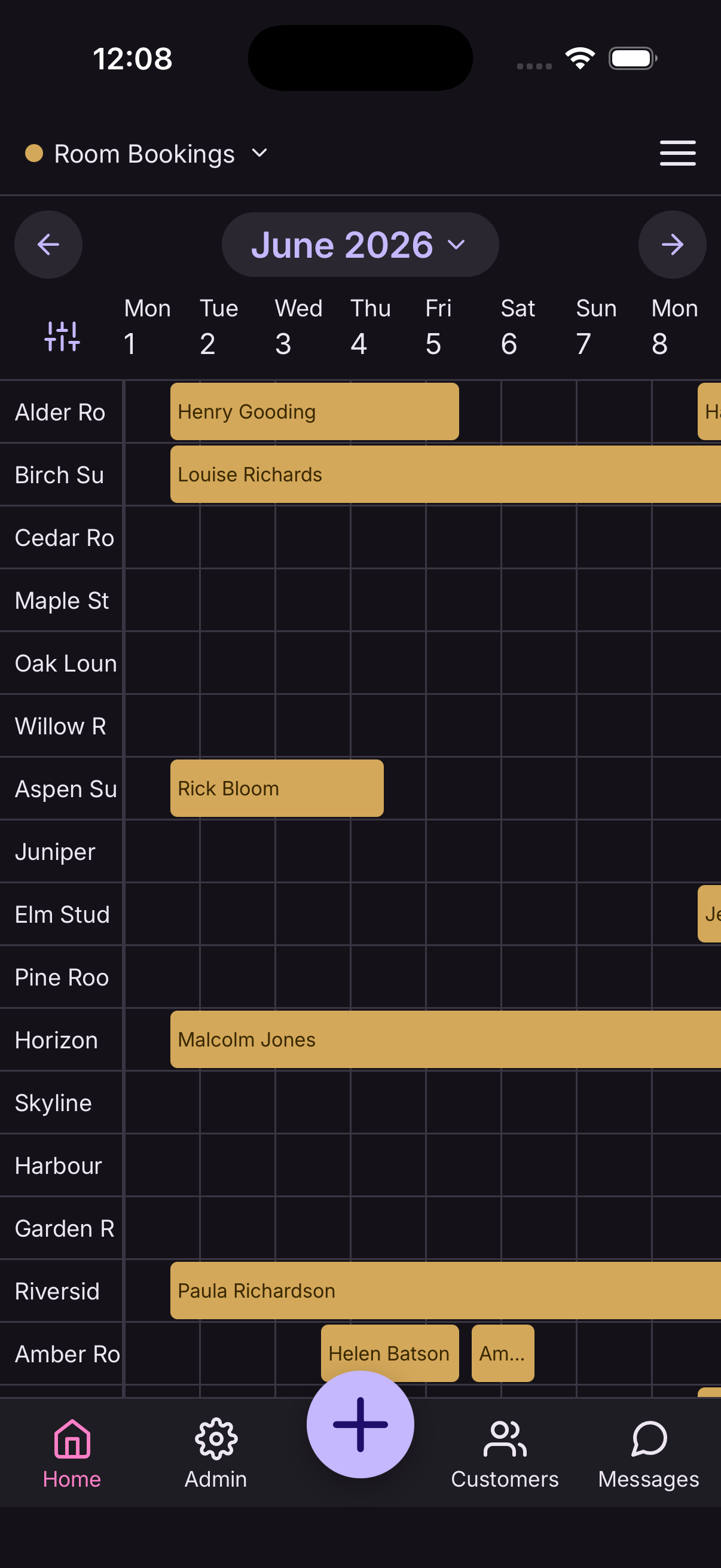
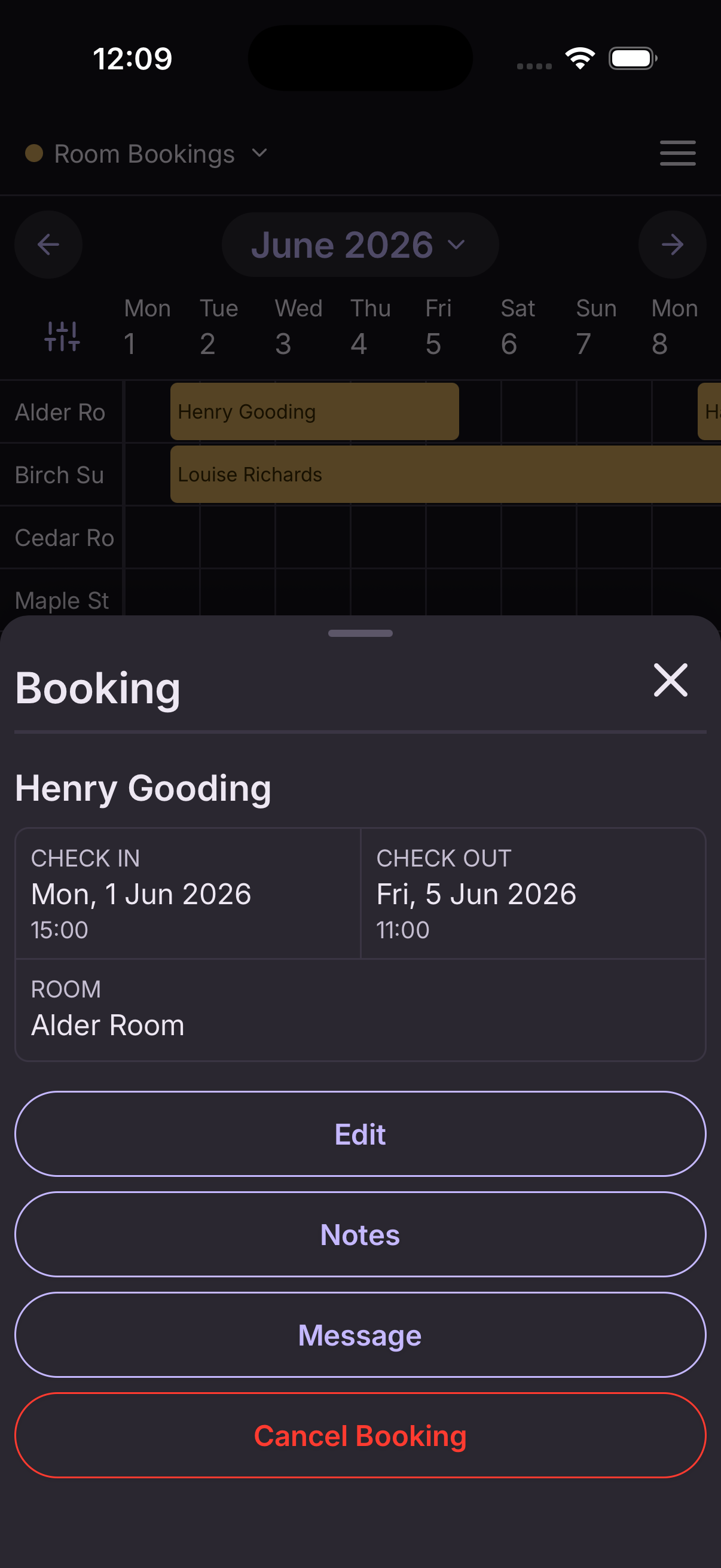
- Tap a booking on the schedule to open its detail panel.
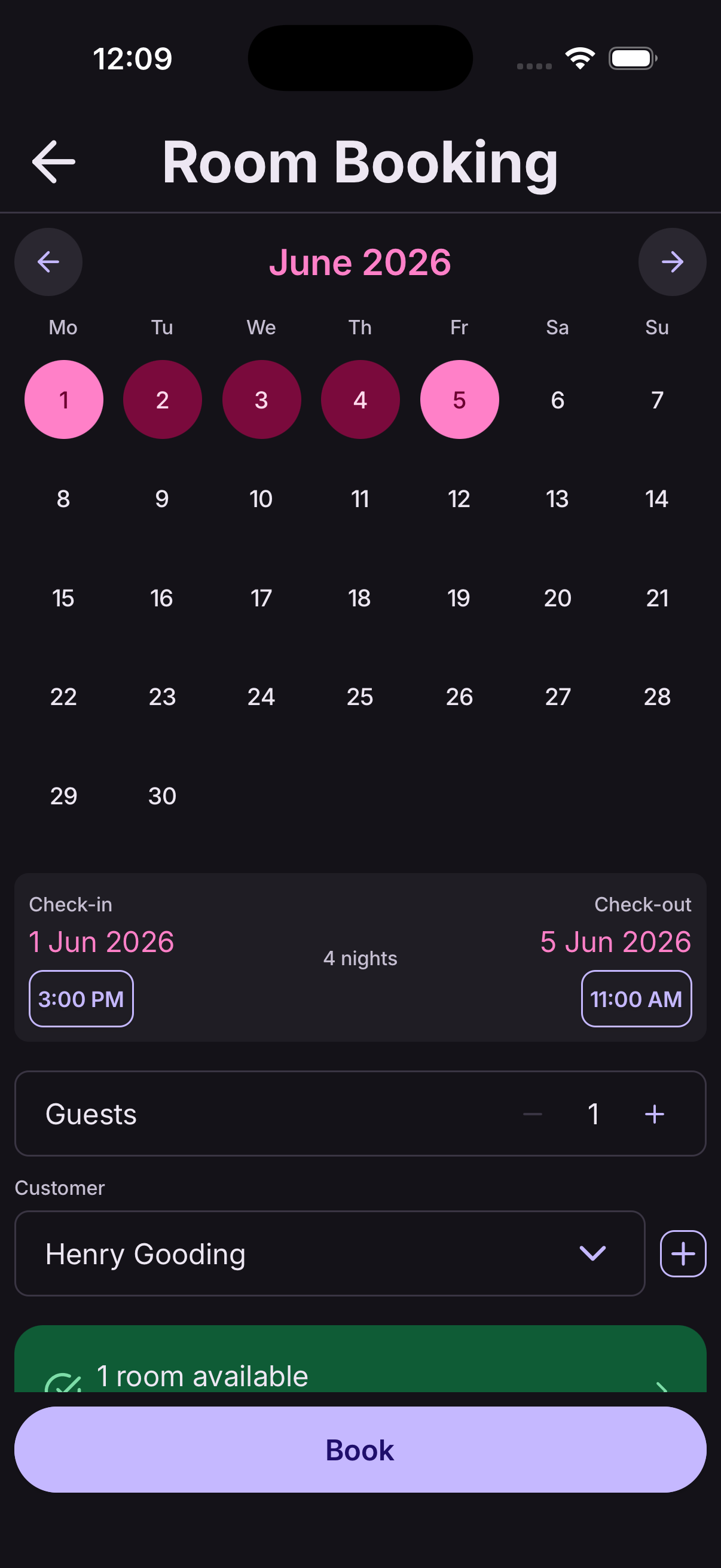
- Tap Edit — the booking form opens with all existing details pre-filled.
- Update any fields you need (customer, entity, dates, notes).
- Tap Save.
At9 checks availability again when you save, so you'll be warned if the updated times conflict with another booking.
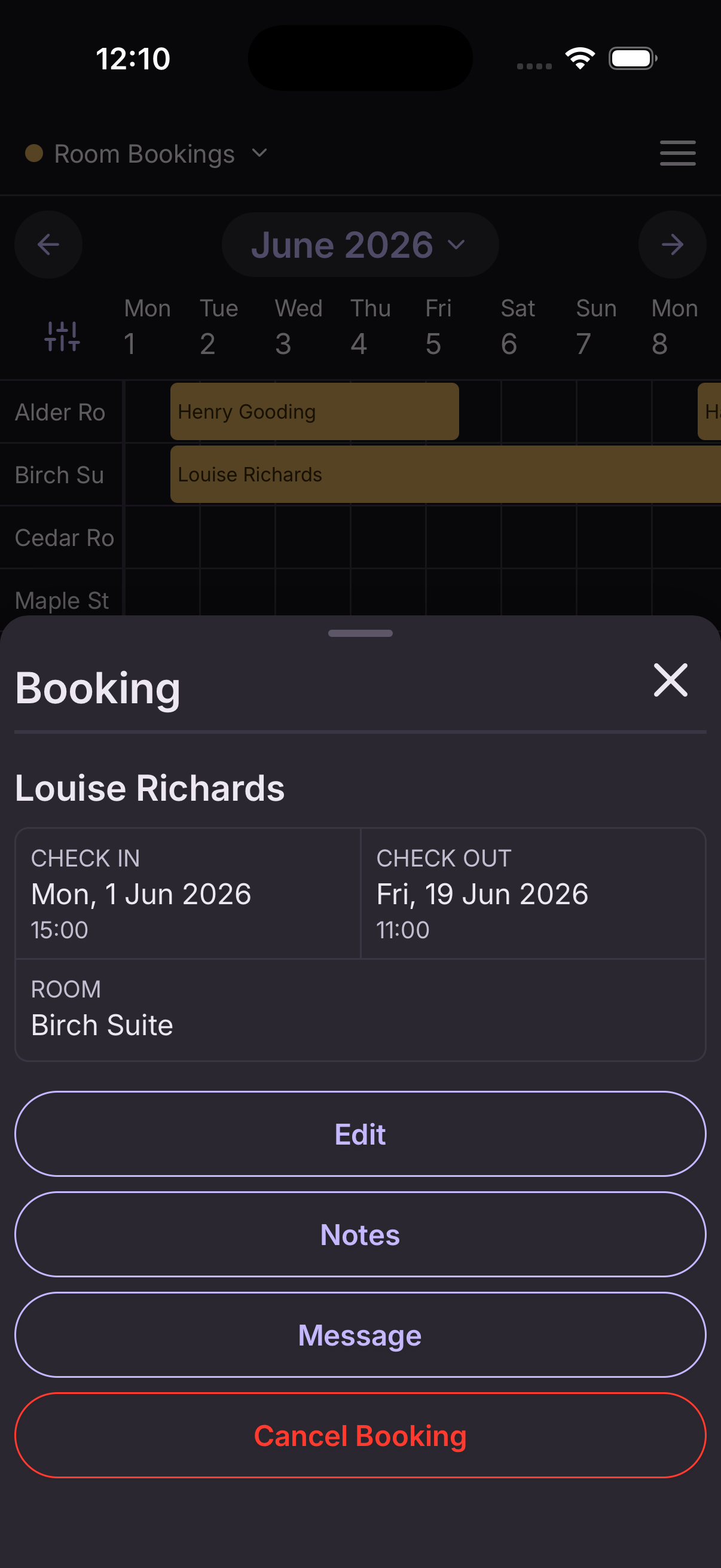
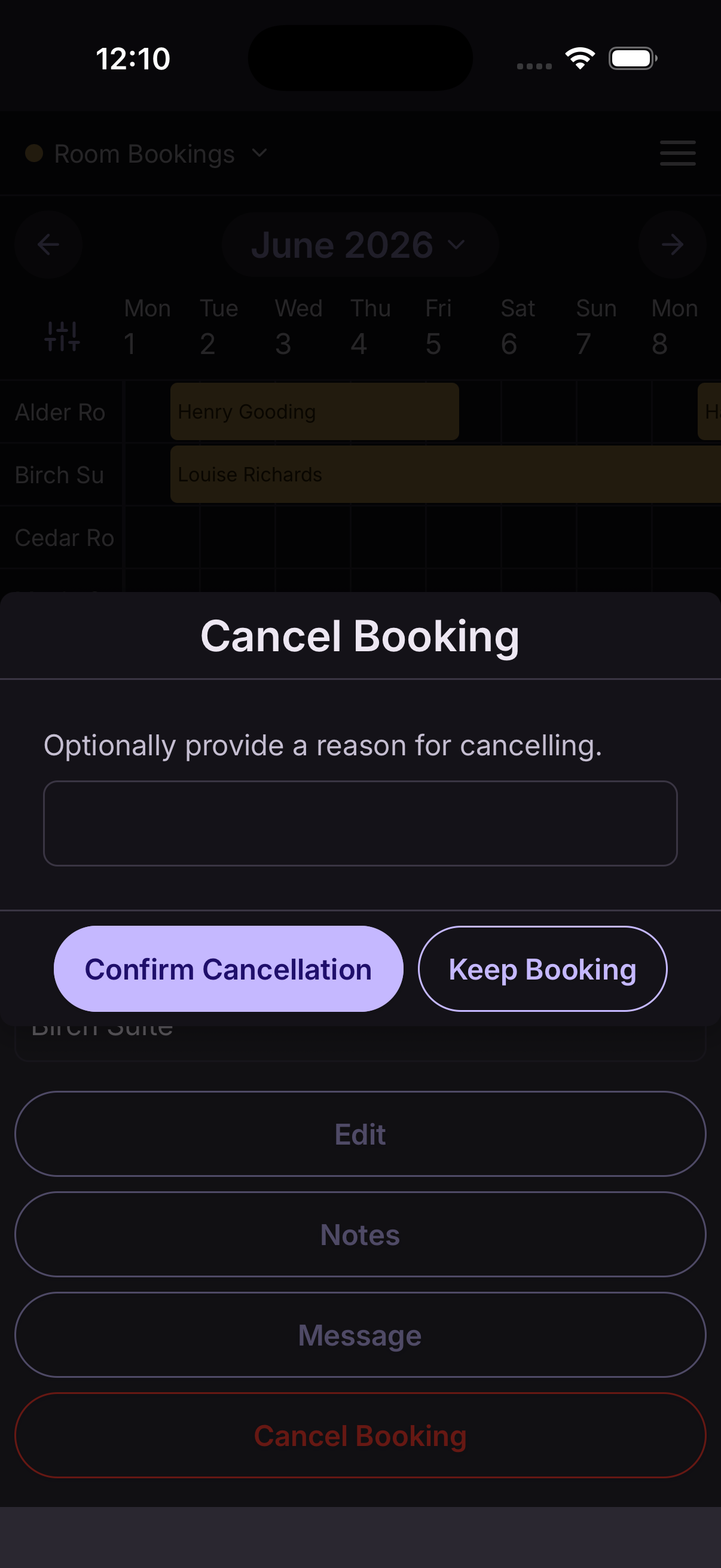
Cancel a booking
- Tap the booking on the schedule to open its detail panel.
- Tap Delete to remove the booking.
- Confirm the deletion when prompted.
The slot is freed immediately and becomes available for new bookings.
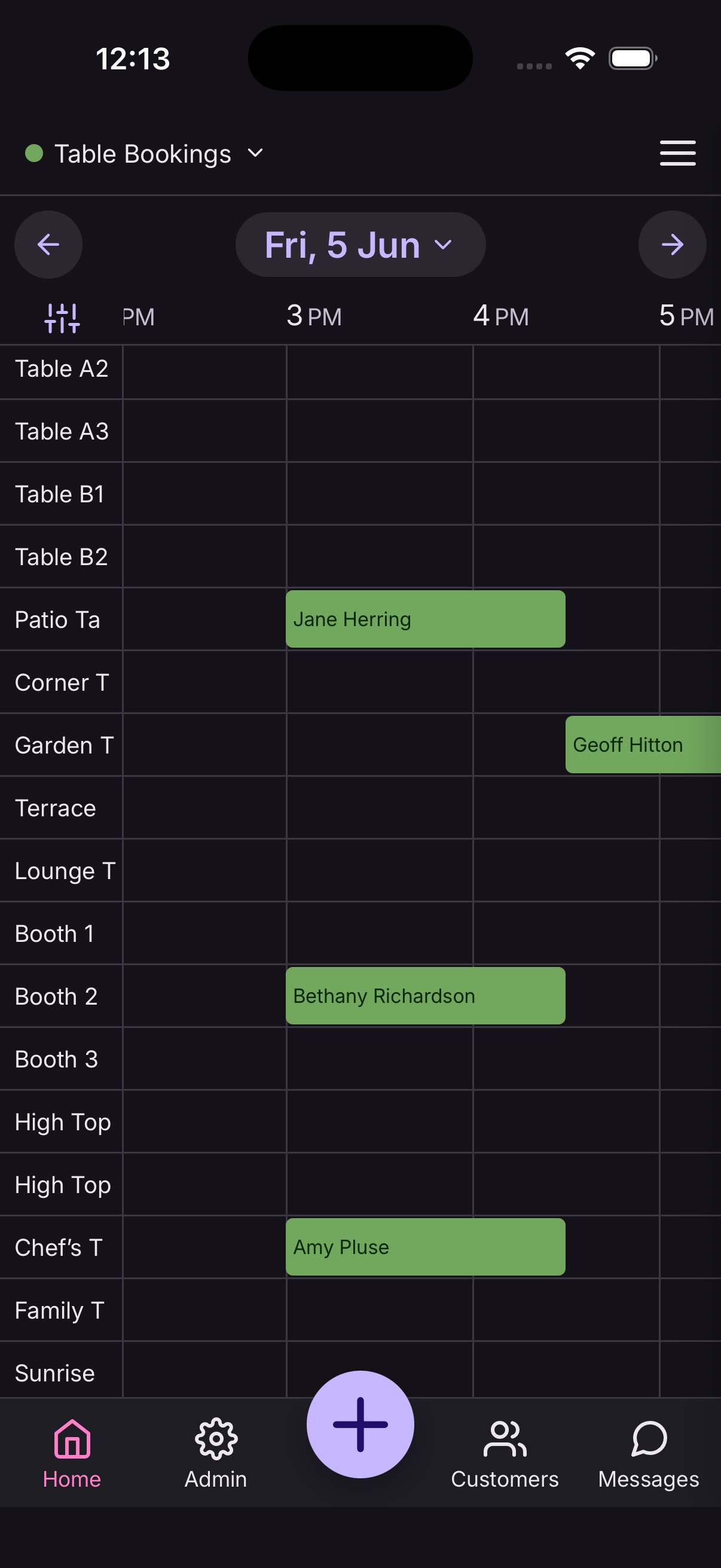
View table bookings
- From the main schedule view, tap the mode selector in the header.
- Select Tables.
The schedule updates to show your table entities as columns, with all table bookings displayed for the selected day or week.
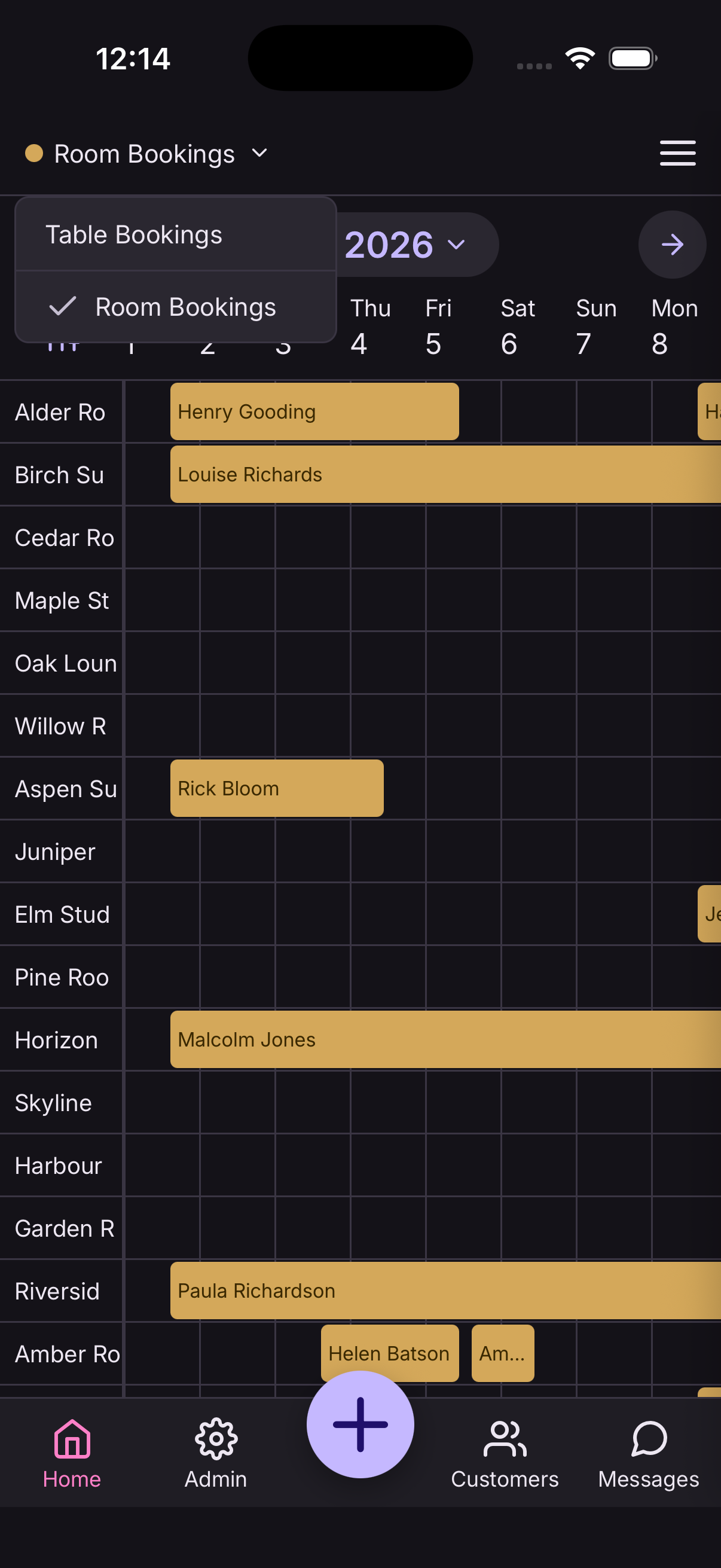
View room bookings
- From the main schedule view, tap the mode selector in the header.
- Select Rooms.
The schedule shows your room entities as columns with all room bookings for the selected period.
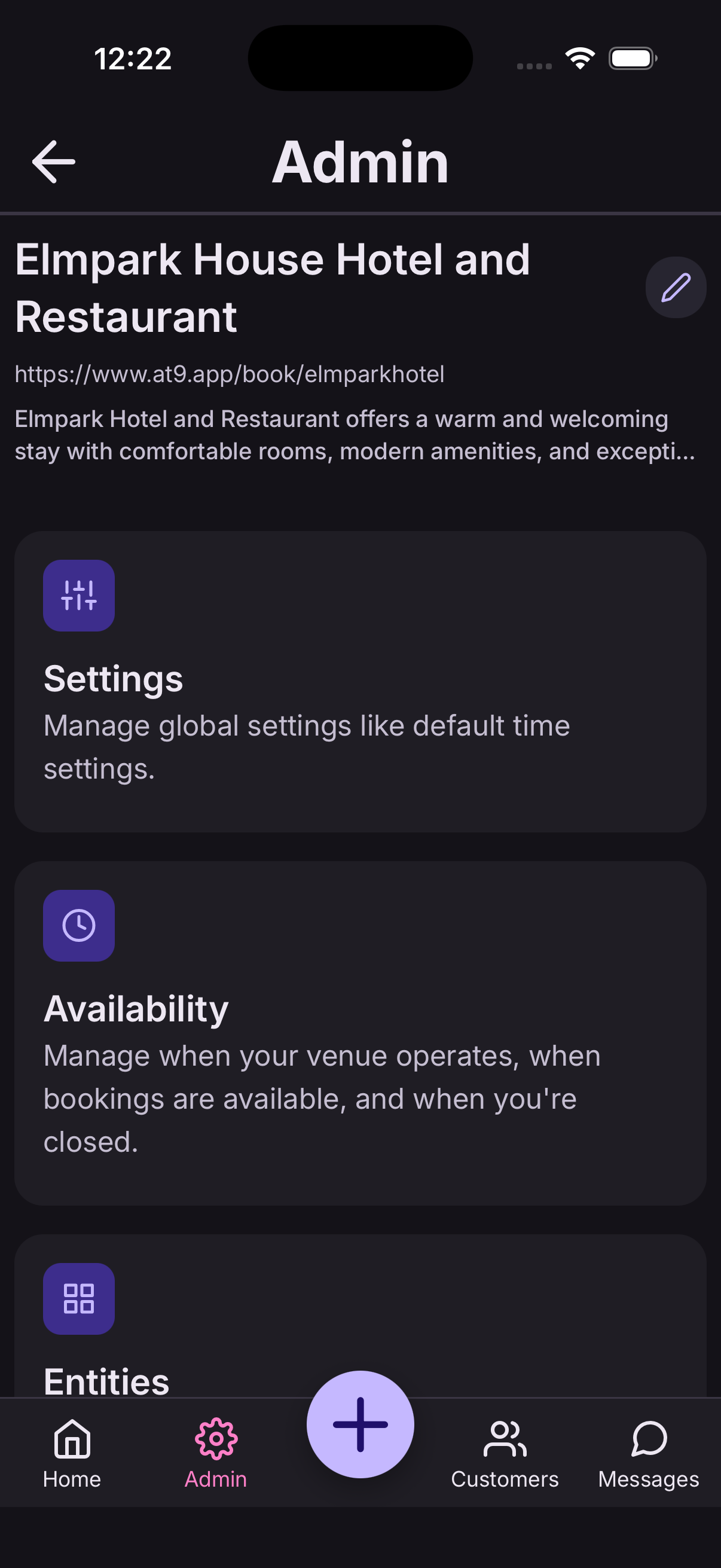
Set operating hours
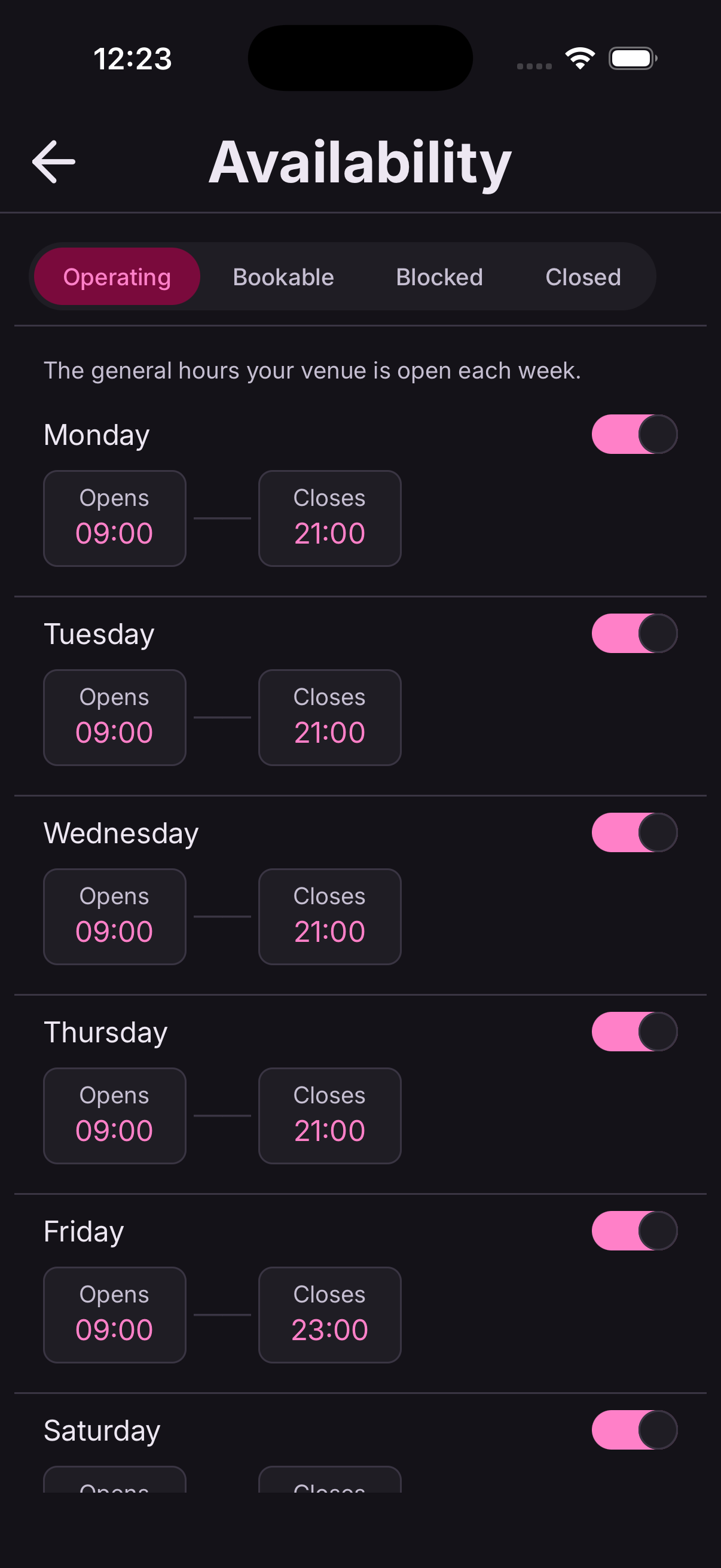
Operating hours define the general hours your venue is open each week. Bookings cannot be made outside these hours.
- Go to Admin → Availability and select the Operating tab.
- Toggle each day of the week on or off using the switch on the right.
- For days that are open, tap the Opens and Closes time buttons to set specific hours.
- Changes save automatically as you make them.
Rooms and tables can have their own bookable hours that override these — useful if your kitchen closes earlier than the venue.
Set bookable hours
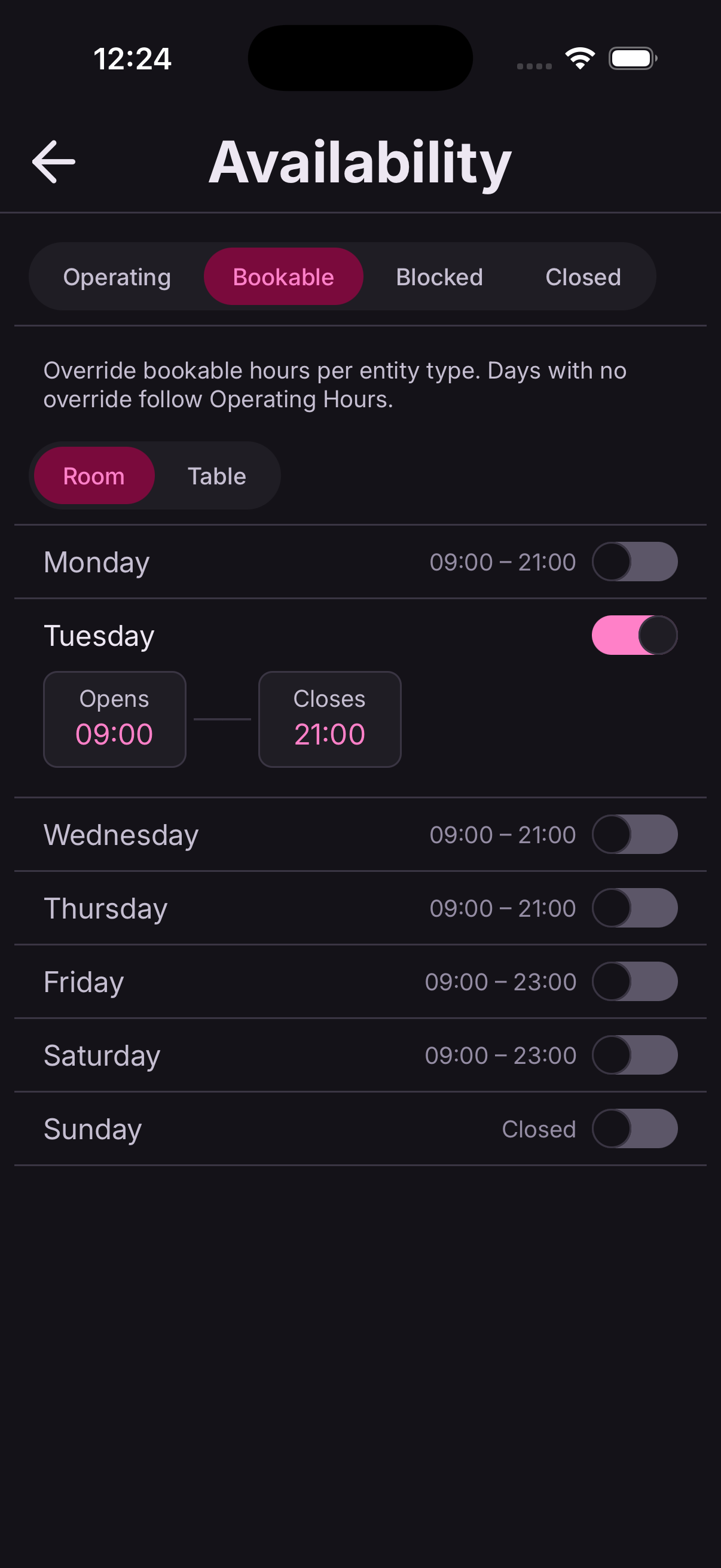
Bookable hours let you set different availability windows for rooms and tables, independent of your general operating hours. Days without a custom setting follow your operating hours.
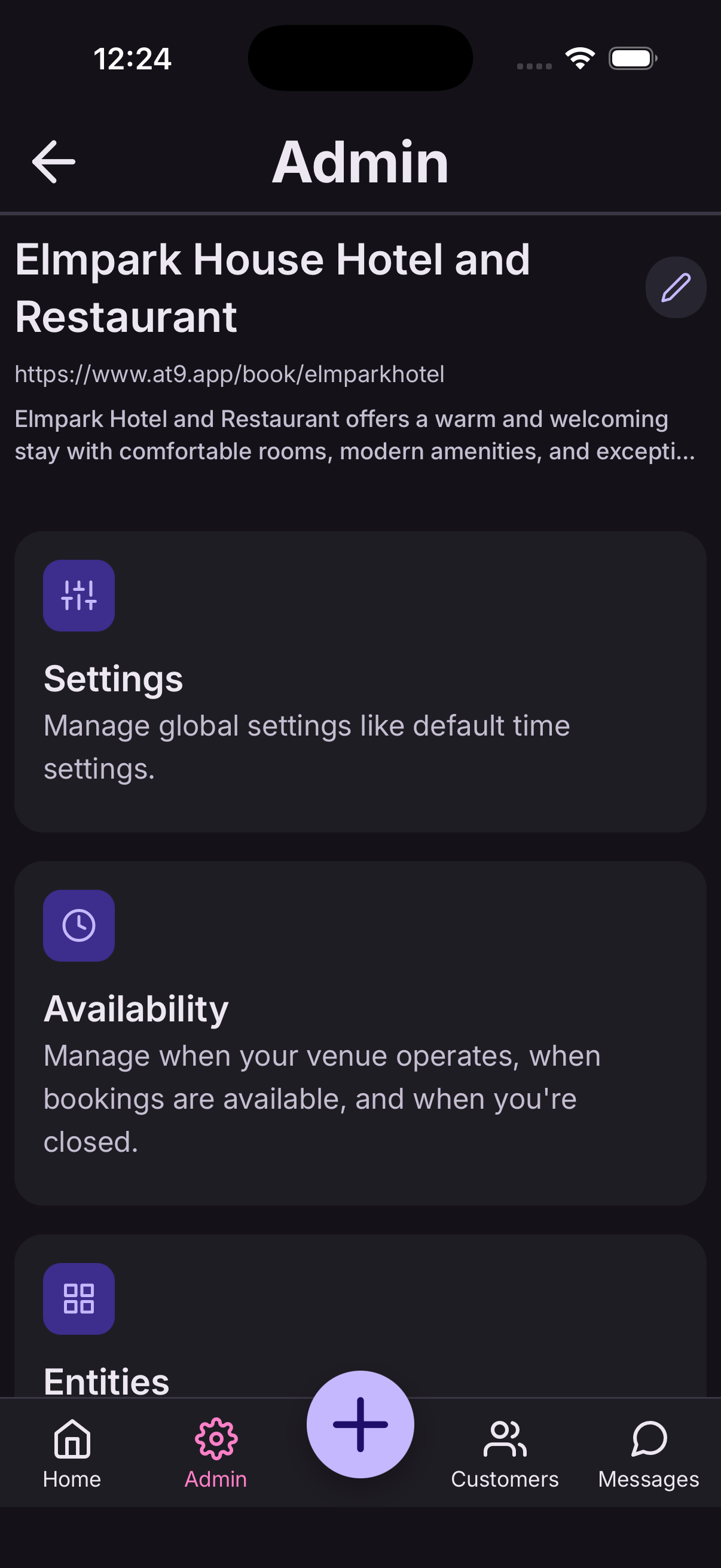
- Go to Admin → Availability and select the Bookable tab.
- Use the Rooms / Tables sub-tabs to select the entity type.
- Toggle individual days on or off, and set opening and closing times for each.
- Changes save automatically.
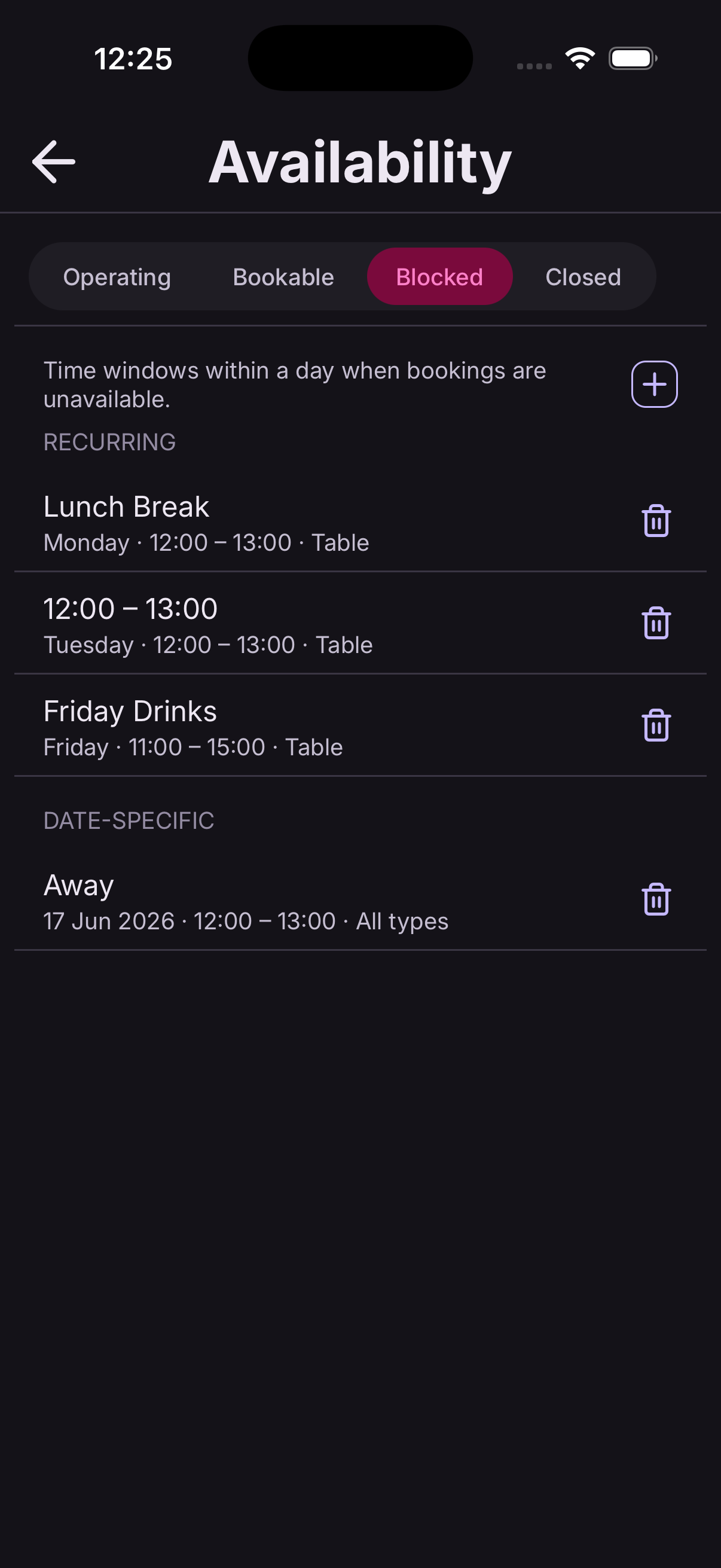
Set blocked periods
Blocked periods prevent bookings during specific time windows — useful for changeovers, lunch breaks, or cleaning slots.
- Go to Admin → Availability and select the Blocked tab.
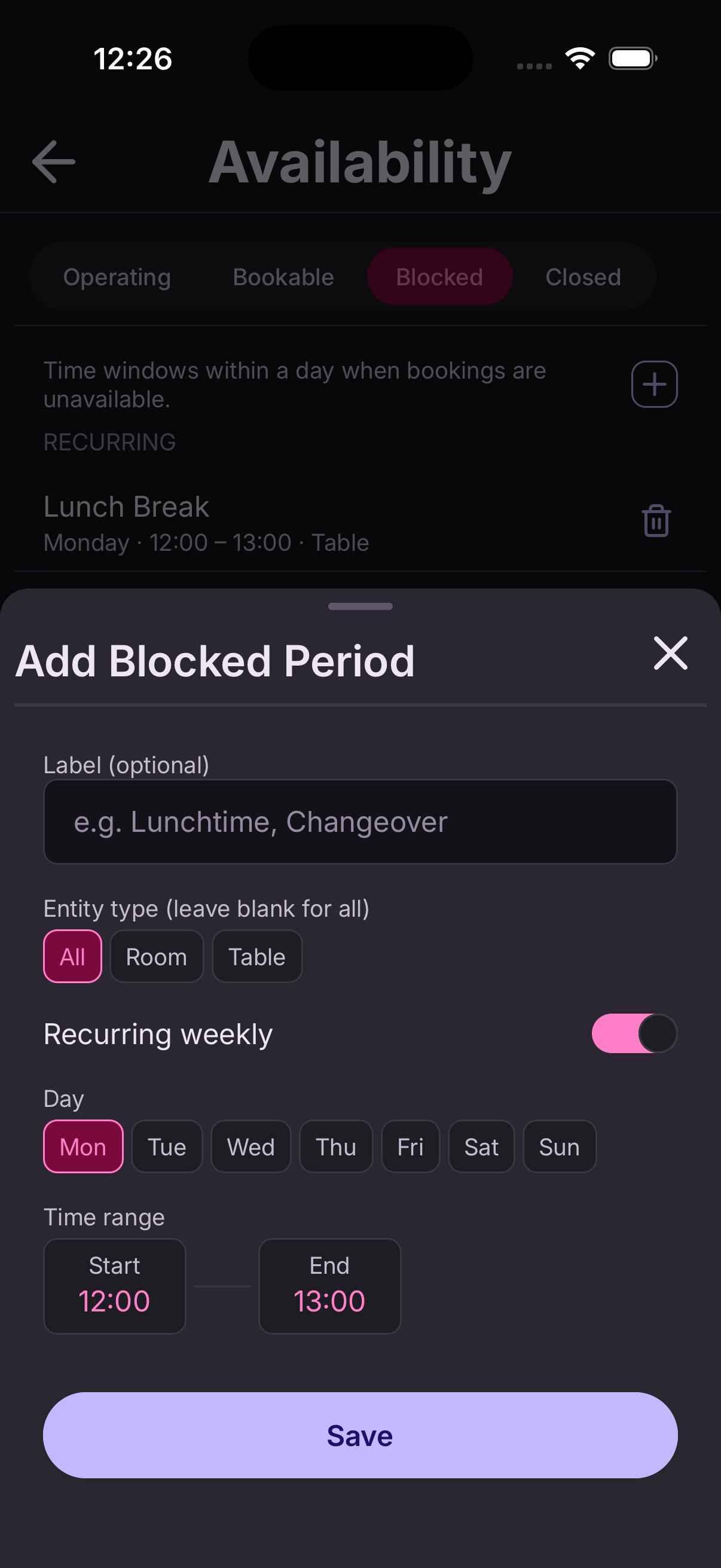
- Tap the + icon to add a new blocked period.
- Optionally add a label (e.g. "Lunchtime", "Changeover") and choose which entity type it applies to, or leave blank for all.
- Toggle Recurring weekly on to block the same time every week, then select the day. Toggle off to pick a specific date instead.
- Set the start and end time for the block.
- Tap Save.
To remove a blocked period, tap the trash icon next to it in the list.
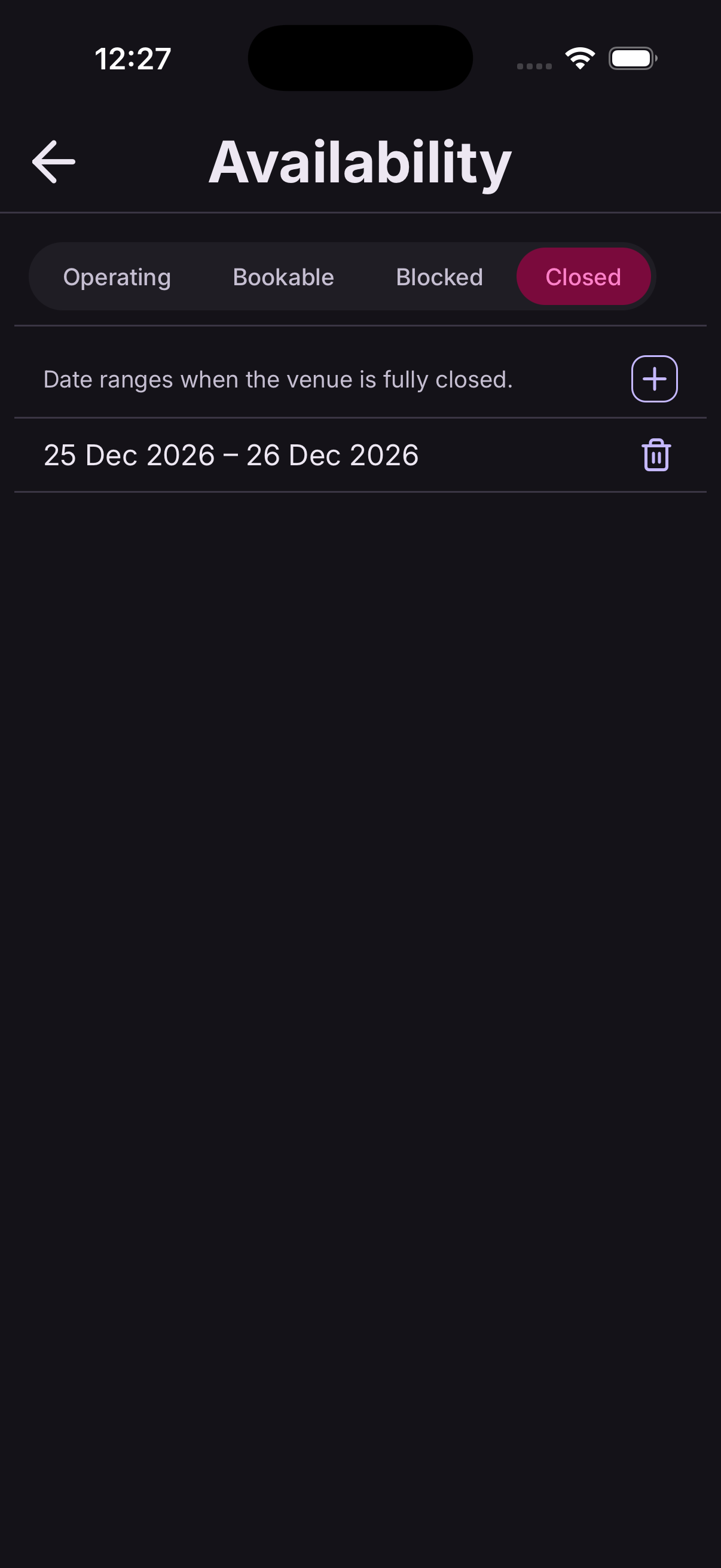
Set closed periods
Closed periods mark date ranges when your venue is completely unavailable — for holidays, refurbishments, or planned closure.
- Go to Admin → Availability and select the Closed tab.
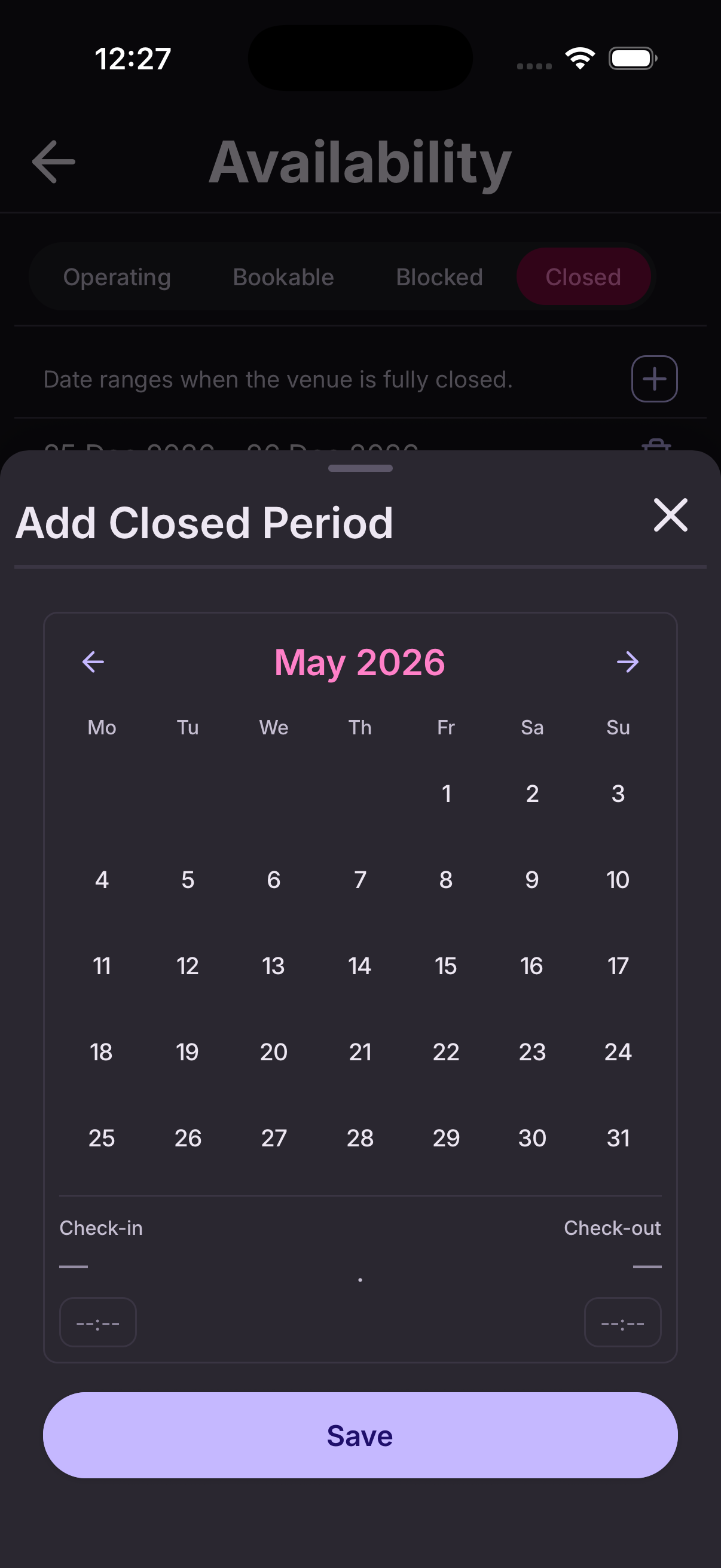
- Tap the + icon to add a new closed period.
- Use the calendar to select the start and end date for the closure.
- Tap Save.
No bookings can be made during a closed period. To remove one, tap the trash icon next to it in the list.
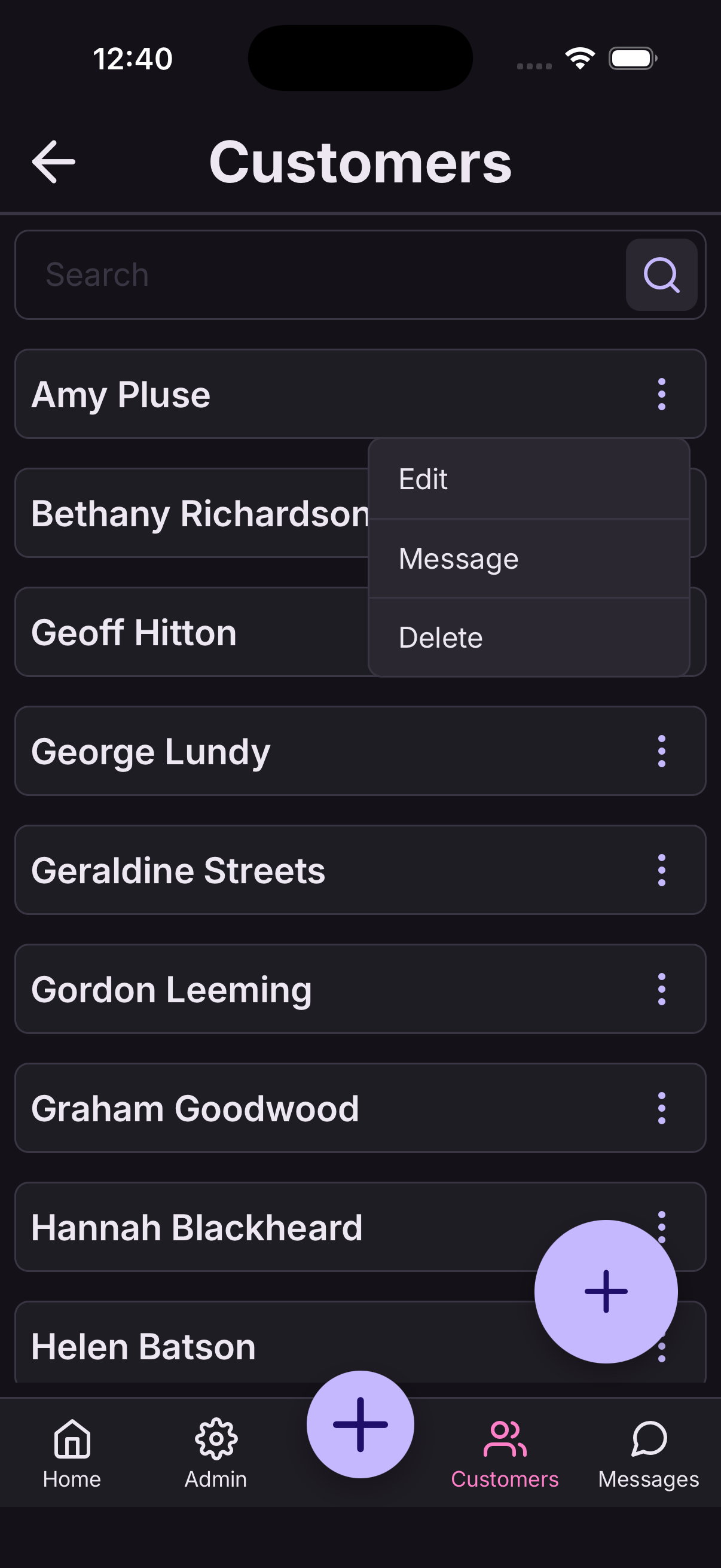
Add a customer
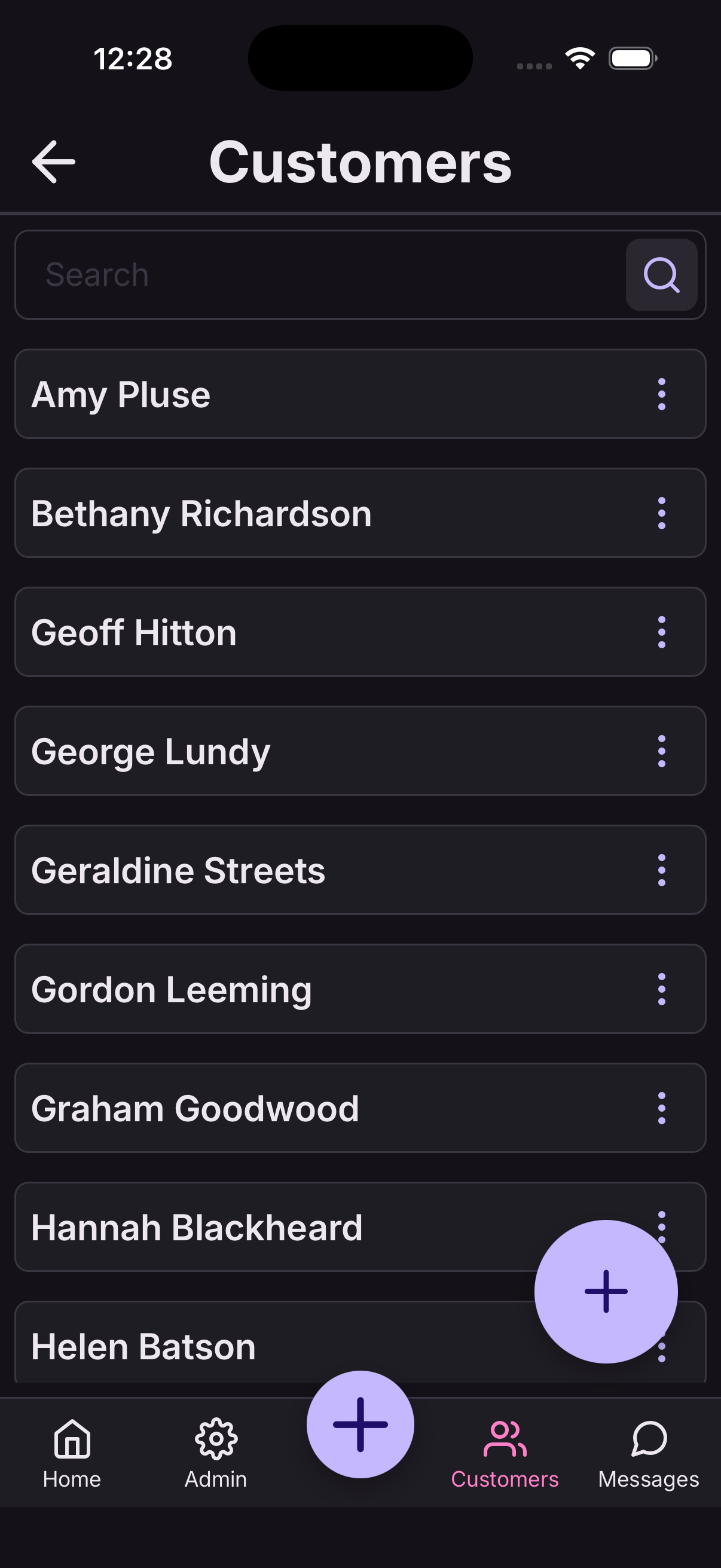
- From the main menu, tap Customers.
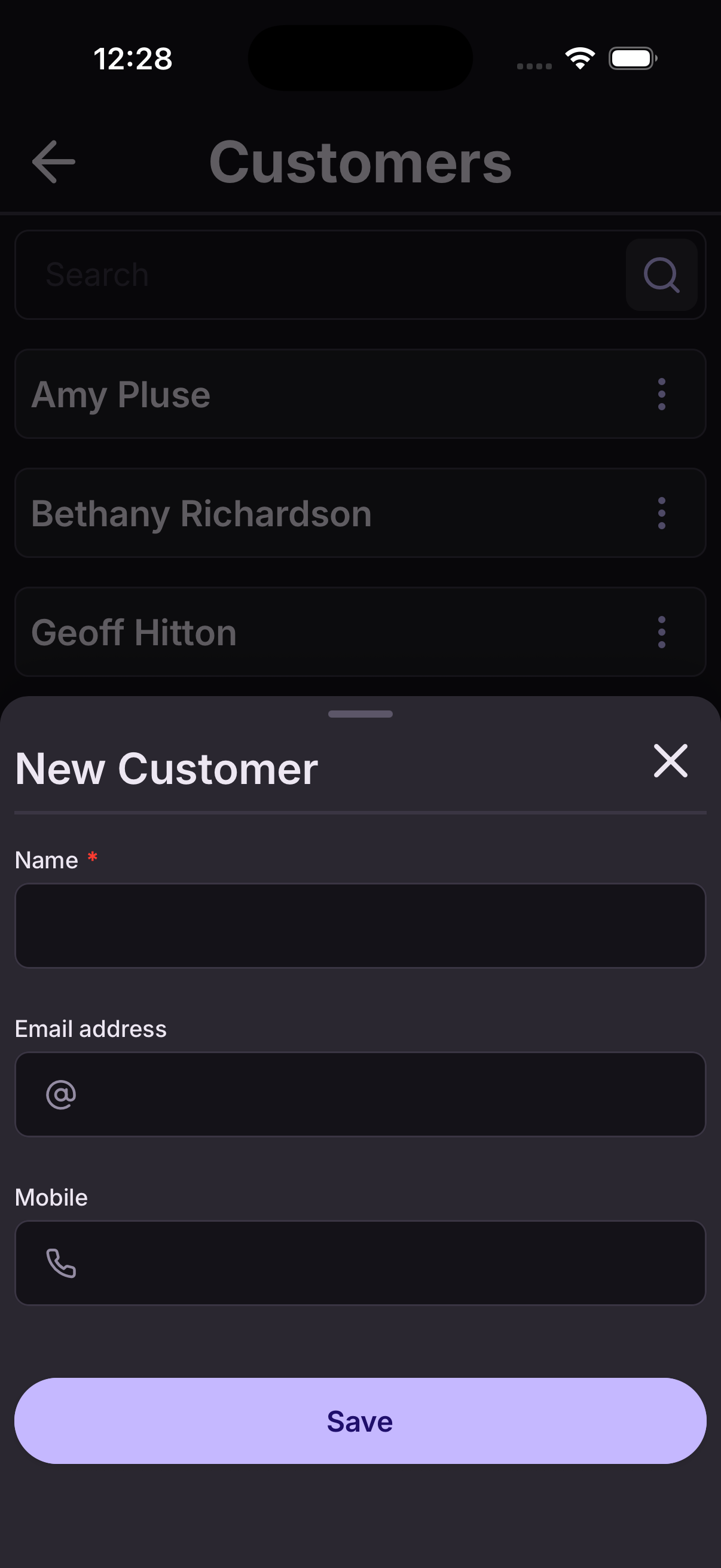
- Tap the + button to open the new customer form.
- Enter the customer's name and contact details.
- Tap Save.
The customer is now available to select when creating or editing a booking. You can also add customers on the fly from within the booking form.
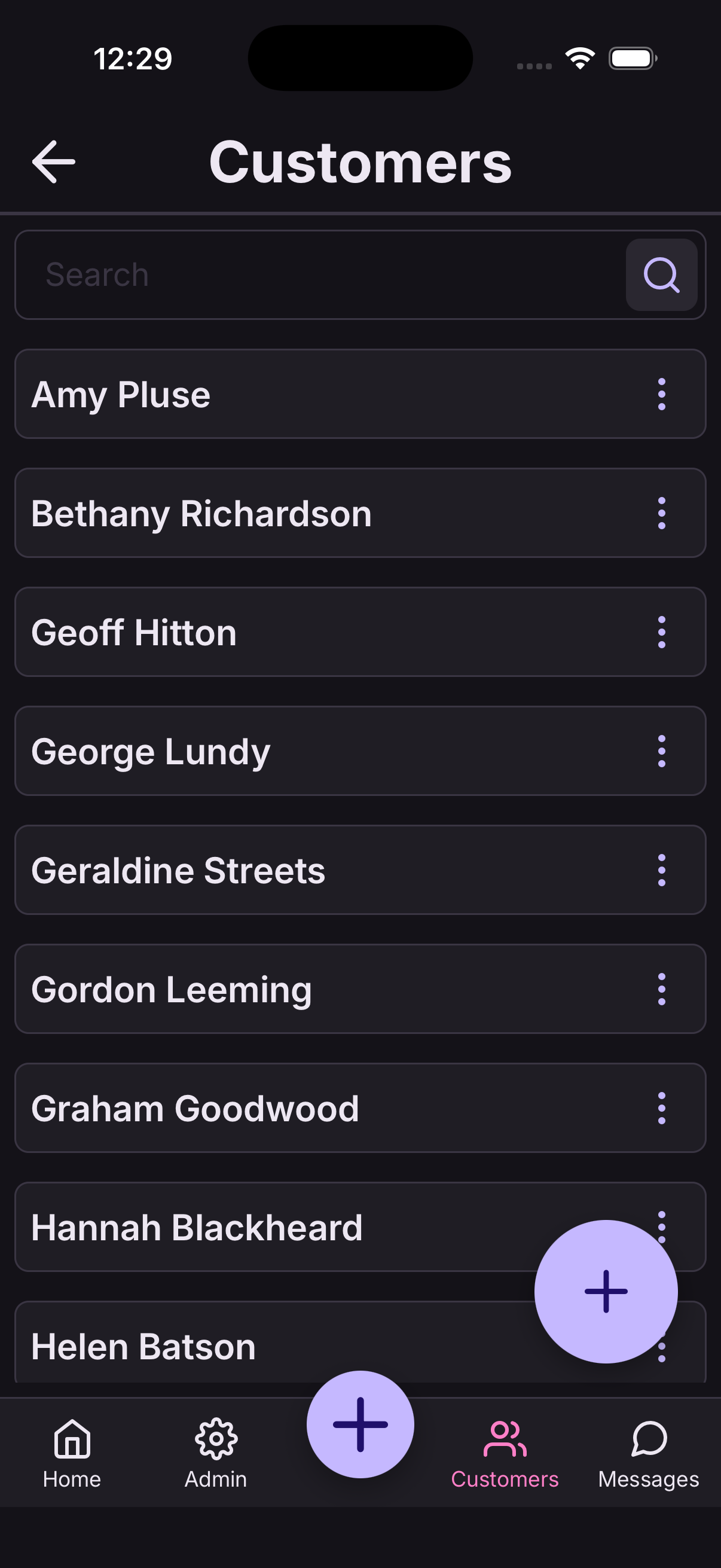
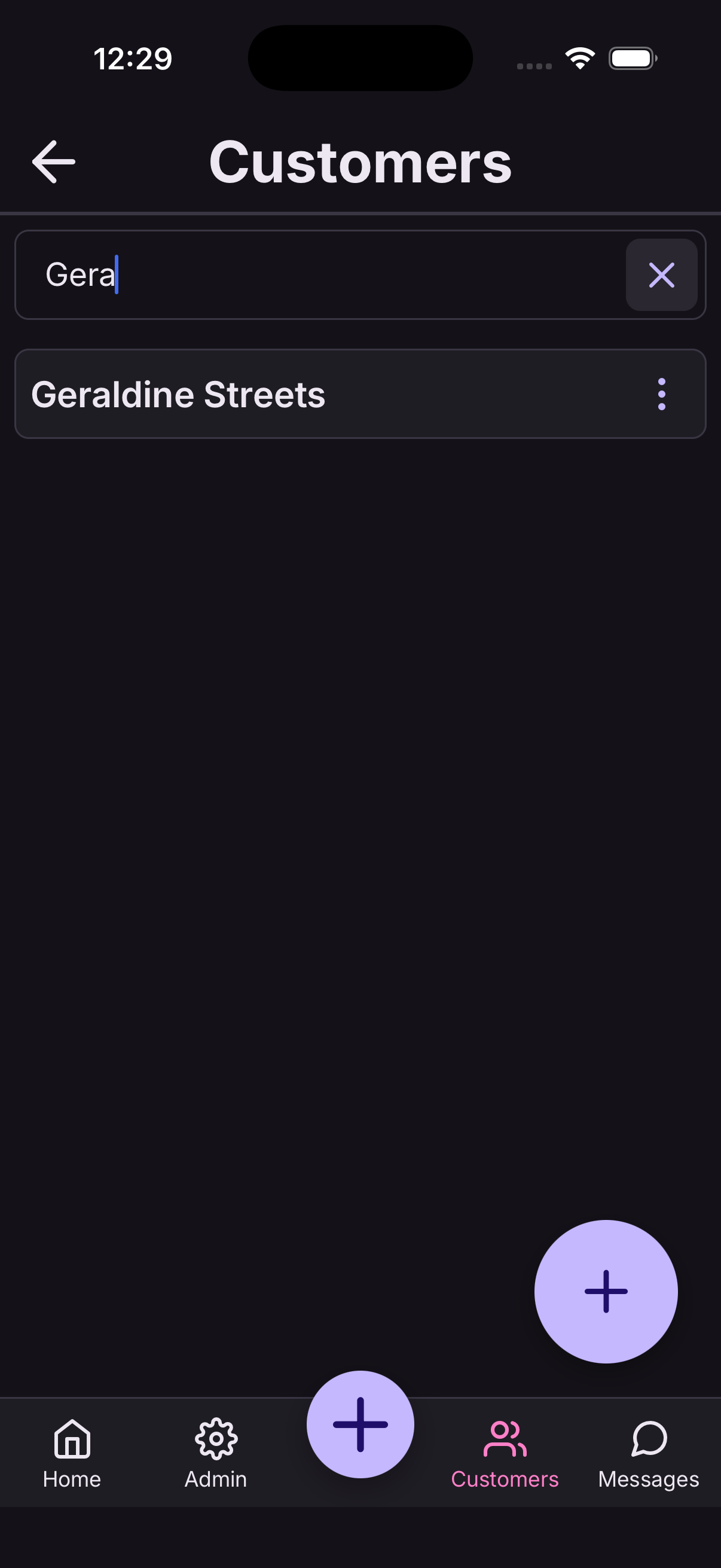
Search customers
- From the main menu, tap Customers.
- Type a name into the search bar at the top of the screen.
- Tap the search button to filter the list.
To clear the search and show all customers, tap the reset button.
Delete a customer
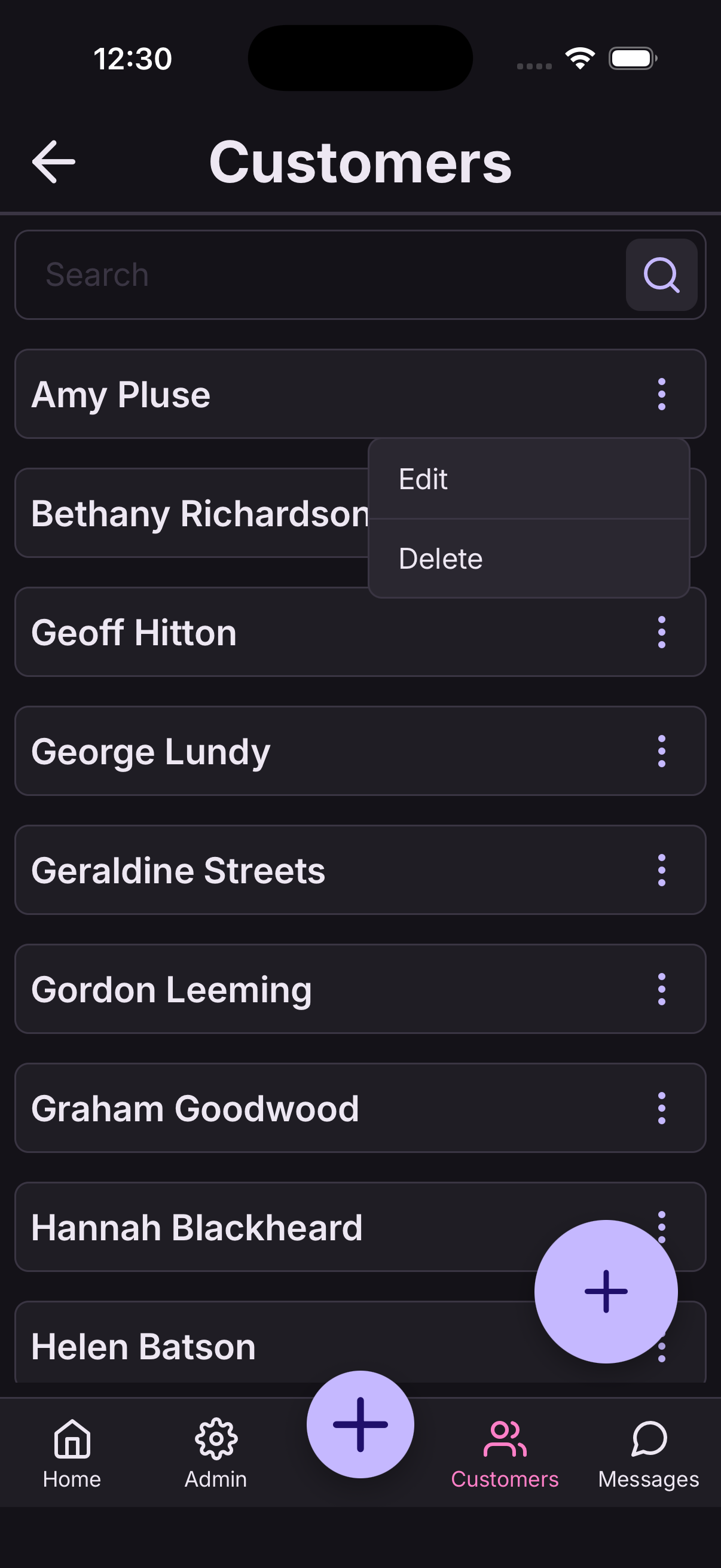
- From the Customers list, tap the customer's name to open their profile.
- Select the option to delete the customer.
- Confirm the deletion when prompted.
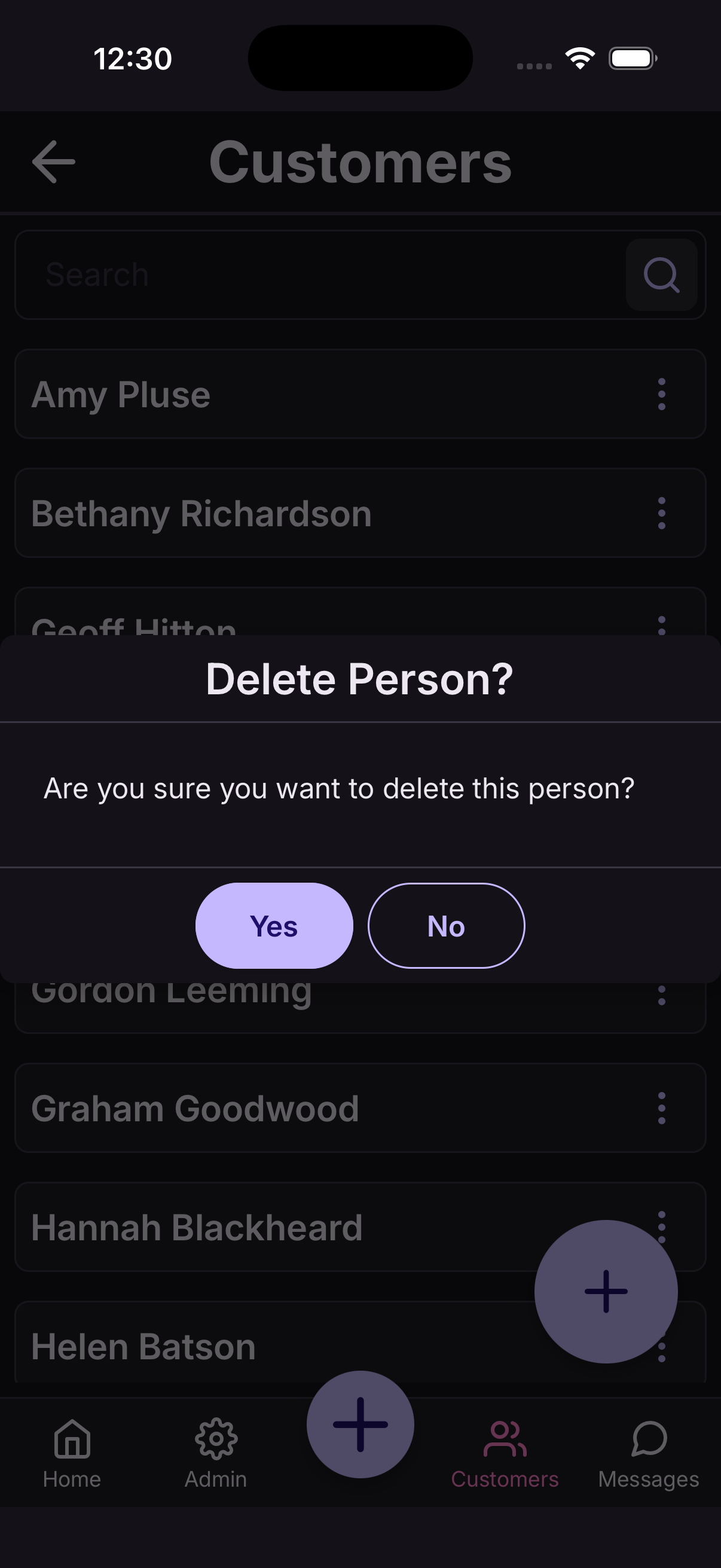
Deleting a customer removes them from your customer list. It does not delete any booking records that reference them.
Message a customer
- From the Customers list, tap the customer's name to open their profile.
- Tap Message to open the compose screen.
- Type your message and tap Send.
Messages are sent in-app and keep a conversation thread with each customer — useful for confirming bookings, sharing arrival details, or following up after a stay.